
Last updated: November 2026. Written by Syed Usman Riaz.
WordPress SEO is the work of setting up and running a WordPress site so search engines can crawl it, understand it and rank it. WordPress already handles a lot for you: clean URLs, an XML sitemap at /wp-sitemap.xml (since version 5.5), native lazy loading, WebP and AVIF uploads, and one-click HTTPS. To rank, you still need five things: the right settings, one SEO plugin, fast hosting and caching, sensible archive and duplicate-content decisions, and genuinely helpful content.
It covers self-hosted WordPress (the WordPress.org software on your own hosting), in working order: settings, plugin, technical decisions, speed, content, then a routine to keep it healthy.
Key takeaways
- Check Settings > Reading first. If “Discourage search engines from indexing this site” is ticked, nothing else on this list matters.
- Use one SEO plugin, not two. Yoast SEO, Rank Math, The SEO Framework and All in One SEO all cover the essentials. Pick one and configure it properly.
- Decide what deserves to be indexed. Thin tag archives, attachment pages and empty author pages usually don’t.
- Speed is mostly hosting, caching and images. Fewer, better plugins beat any “speed booster” plugin.
- Never change URLs without 301 redirects. Permalink changes and migrations are where WordPress sites lose the most traffic.
- Run a short audit every month. Search Console, Site Health and a crawl catch most problems before they cost you rankings.
What is WordPress SEO, and is WordPress good for SEO?
WordPress SEO is ordinary SEO applied to the way WordPress works: its settings, themes, plugins, archives and media library. Search engines must find your pages, understand each one and trust it enough to rank it. If the basics are new to you, start with what is SEO.
WordPress is a good platform for SEO because it gives you full control over titles, URLs, redirects, structured data, robots rules and speed. Hosted builders such as Squarespace or Wix are easier to start with but give you less technical control.
That control cuts both ways: a careless setup (a heavy theme, 40 plugins, thousands of thin tag pages) can rank worse than a simple builder site. In my client work since 2014, most WordPress SEO problems I’ve found came from settings and plugins, not from WordPress itself.
Which WordPress settings matter for SEO?
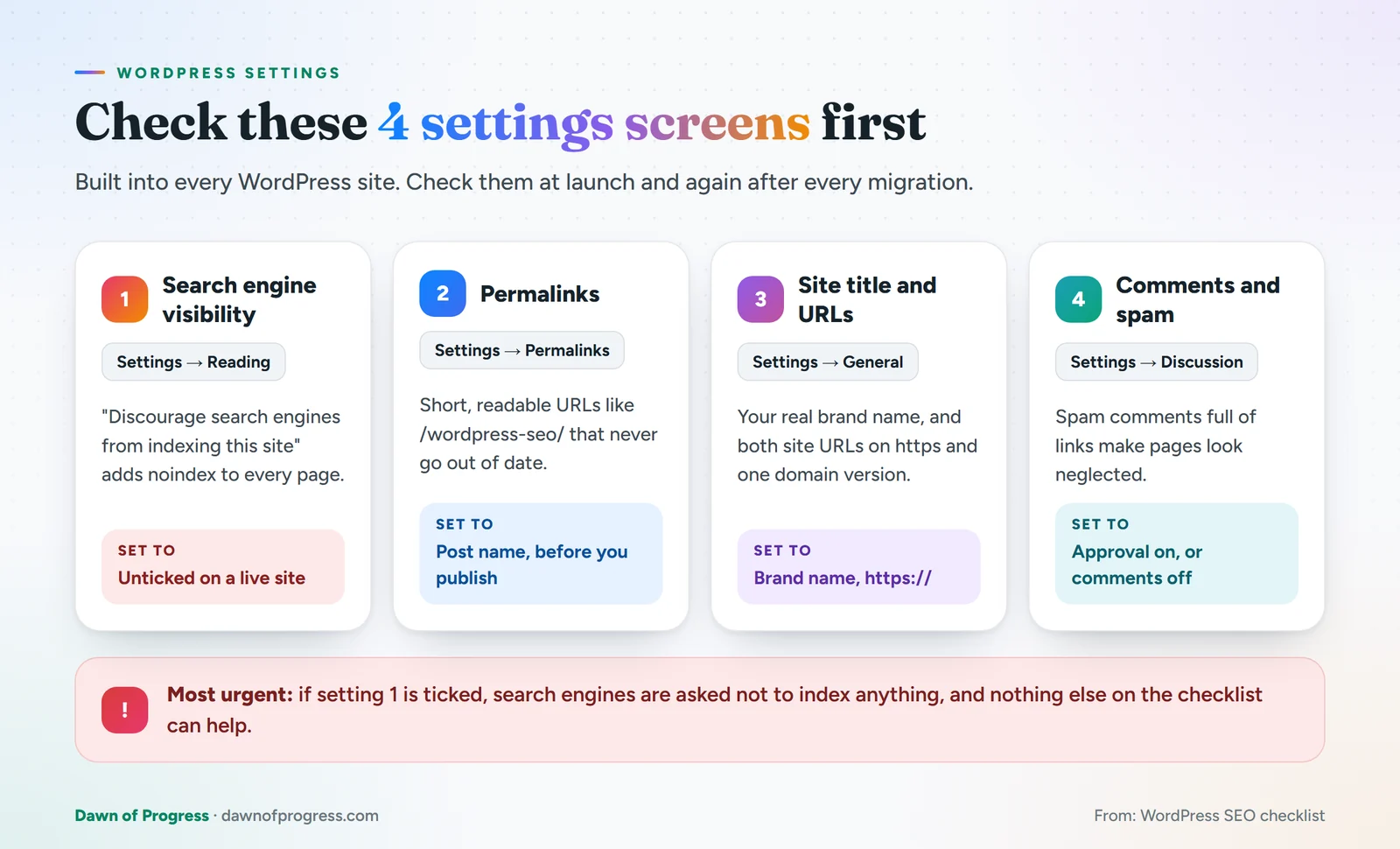
Four built-in settings screens affect SEO. Check them on every new site and after every migration.
1. Search engine visibility (Settings > Reading)
At the bottom of Settings > Reading is a checkbox labelled “Discourage search engines from indexing this site”. Since WordPress 5.3, ticking it adds a noindex, nofollow robots meta tag to every page. It also turns off the core XML sitemap (WordPress documentation: Reading Settings).
Make sure it is unticked on any site you want found. It’s the first thing to check when a WordPress site “doesn’t show up on Google”.
2. Permalinks (Settings > Permalinks)
Permalinks are the permanent URLs of your posts and pages. Choose Post name, which gives URLs like example.com/wordpress-seo/. It’s short, readable and doesn’t go out of date the way date-based URLs do.
Set this before you publish. On an existing site, don’t change it unless you’re ready to 301 redirect every old URL (see the migration section).
3. Site title and tagline (Settings > General)
The Site Title often appears in your title tags and is one of the signals Google uses for the site name shown in results. Use your real business or brand name. Older installs may still show the default tagline “Just another WordPress site”; replace it with a short description of what you do, or leave it empty.
On the same screen, check that WordPress Address (URL) and Site Address (URL) both use https:// and the same version of your domain (with or without www).
4. Discussion and spam (Settings > Discussion)
Spam comments full of links make a page look neglected. If you allow comments, require approval (“Comment author must have a previously approved comment” is a good middle ground), hold comments with two or more links, and use an anti-spam plugin. WordPress marks links in comments as nofollow ugc by default. If comments add nothing to your site, turn them off for new posts.
What is the best SEO plugin for WordPress?
You don’t strictly need an SEO plugin to rank, but one saves a lot of work: editable titles and descriptions, sitemap and noindex control, schema and (in some) redirects. The best one is the one you configure properly and keep.
Here is an honest comparison, based on each plugin’s WordPress.org listing in November 2026. Features move between free and paid tiers often, and prices change, so check the vendor’s site before you decide.
| Yoast SEO | Rank Math | The SEO Framework | All in One SEO (AIOSEO) | |
|---|---|---|---|---|
| Free version | Yes, with a Premium upgrade | Yes, with a PRO upgrade | Yes; core plugin is free, optional paid extensions | Yes (“Lite”), with a Pro upgrade |
| Titles and meta descriptions | Free | Free | Free, auto-generated by default | Free |
| XML sitemap | Free | Free | Free, works with WordPress core sitemaps | Free (basic) |
| Schema (structured data) | Free basics, more types in Premium | Free, many types; advanced builder in PRO | Free basics (breadcrumbs, site info) | Free basics, more in Pro |
| Redirect manager | Premium | Free | No general redirect manager | Pro |
| Internal link suggestions | Premium | Listed as a feature; AI suggestions in PRO | No | Pro (Link Assistant) |
| Content analysis | Yes (readability and keyphrase) | Yes, up to 5 focus keywords free | Minimal by design | Yes (TruSEO) |
| Best for | Beginners and teams who want guidance and a long track record | Users who want many features free | Developers and people who want a light, quiet plugin | Users who like a guided setup wizard |
My take: I’ve used Yoast and Rank Math on client sites for years, and either is a sound choice. Rank Math gives you redirects free; Yoast is the most widely installed and the most predictable on teams. If you dislike dashboards full of notices, The SEO Framework is the lightest choice.
Two rules matter more than the choice: install only one SEO plugin (two means duplicate titles, sitemaps and canonicals), and don’t chase the green light, because readability and keyword scores are suggestions, not ranking factors.
How do you write titles and meta descriptions in WordPress?
WordPress builds a default title tag from the post title and site title. Your SEO plugin lets you set templates per post type and archive, and override them per page in the editor. Write each title for a person scanning results:
- Put the main term near the start, and keep it around 50 to 60 characters so it isn’t cut off. Google truncates by pixel width, not a fixed character count.
- Make every title unique, including archive pages.
- Google may rewrite titles that are vague, stuffed with keywords or don’t match the page (Google Search Central: title links).
Meta descriptions don’t affect rankings directly, but a clear one earns the click. Aim for about 140 to 160 characters. My meta descriptions guide covers this in detail, and the on-page SEO guide covers headings and content.
Before and after example (a plumber’s service page):
| Title | Meta description | |
|---|---|---|
| Before | Services – Smith Plumbing | Just another WordPress site |
| After | Emergency Plumber in Leeds, 24/7 Callouts – Smith Plumbing | Blocked drain or burst pipe in Leeds? Smith Plumbing answers 24/7, gives a fixed price before work starts and usually arrives within the hour. |
The second names the service and place and gives a reason to click. Only promise what is true.
Does WordPress create an XML sitemap on its own?
Yes. Since WordPress 5.5, core creates an XML sitemap index at /wp-sitemap.xml and adds it to the virtual robots.txt file. It lists your homepage, posts, pages, public custom post types, categories, tags and author archives, up to 2,000 URLs per sitemap file. It doesn’t include image or video sitemaps (WordPress core announcement, 2020).
Most SEO plugins switch the core sitemap off and replace it with their own, usually at /sitemap_index.xml. The differences:
| Core sitemap (/wp-sitemap.xml) | Plugin sitemap | |
|---|---|---|
| Setup | Automatic | Automatic once the plugin is active |
| Excludes noindexed pages | Not by default | Yes, usually |
| Removes tags, authors or post types | Only with code | A setting in the plugin |
| Last modified dates | No | Yes, usually |
How to check it works:
- Open
/sitemap_index.xml(with a plugin) or/wp-sitemap.xml(without one) on your domain. - Check it lists the pages you want indexed and nothing set to noindex.
- Submit it under Sitemaps in Google Search Console and in Bing Webmaster Tools. My Google Search Console guide walks through this.
Should you noindex category and tag pages?
WordPress automatically creates a URL for every category, tag, author and date archive. A few useful archives are fine; hundreds of thin ones (a tag used on one post, an author page on a one-author blog) are near-duplicate pages that waste crawling. Use this decision table:
| Archive type | Default decision | Index it when |
|---|---|---|
| Categories | Index | Always, if each category has several posts and a short intro |
| Tags | Noindex, or stop using tags | A tag has many posts and a real topic (rare on small sites) |
| Author archives | Noindex on single-author sites | Multi-author sites where author pages show real bios |
| Date archives | Noindex or disable | Almost never |
| Media attachment pages | Redirect to the file or parent post | Never |
| Internal search results | Noindex (most SEO plugins do this already) | Never |
WordPress 6.4 turned attachment pages off for new installs, but older sites may still have them; most SEO plugins have a setting to redirect them.
Better still, make categories worth indexing: add a 100 to 200 word introduction that explains the topic and links to its best posts.
How do you handle canonical tags and duplicate content in WordPress?
A canonical tag tells search engines which URL is the main version of a page. WordPress adds a self-referencing canonical to single posts and pages, and SEO plugins extend this to archives and let you set a custom canonical per page.
Duplicate content in WordPress usually comes from:
- Domain versions.
httpvshttps, andwwwvs non-www. All versions should 301 redirect to one. - URL parameters. Tracking codes like
?utm_source=create copies; the canonical tag handles these. - Paginated comments and archives. Leave pagination indexable with self-referencing canonicals; don’t point page 2 at page 1.
- Copied or near-identical pages. Location pages that differ only by town name are the classic case. Write each one properly or merge them.
To check, use the URL Inspection tool in Search Console and compare “User-declared canonical” with “Google-selected canonical”. If they differ, Google has picked another URL as the main version, and that’s worth investigating.
How do you optimize images in WordPress?
WordPress core now does much of the image work for you:
- Modern formats. You can upload WebP since WordPress 5.8 and AVIF since 6.5, if your server’s image library supports them. Core doesn’t convert existing JPEGs automatically; an image plugin or your host’s CDN can (WordPress 6.5 AVIF announcement).
- Responsive sizes. WordPress creates several sizes of each upload and adds
srcsetso phones download smaller files. - Lazy loading. Since 5.5, core adds
loading="lazy"to content images. Since 6.3 it also addsfetchpriority="high"to the image most likely to be the largest element on screen and avoids lazy-loading it.
Your part:
- Resize images to roughly the largest size they display at, then compress them (or let one image optimization plugin do it on upload).
- Write alt text in the block sidebar’s Alternative text field. Describe what the image shows; leave it empty only for purely decorative images.
- Use descriptive file names (
blocked-drain-before.webp, notIMG_4021.jpg). - Don’t lazy-load your hero image. If a theme or plugin forces it, turn that off.
The full process is in my image optimization guide.
How do you make WordPress fast enough for Core Web Vitals?
Core Web Vitals are Google’s three page experience measurements: Largest Contentful Paint (LCP, loading, good at 2.5 seconds or less), Interaction to Next Paint (INP, responsiveness, good at 200 milliseconds or less) and Cumulative Layout Shift (CLS, visual stability, good at 0.1 or less). Search Console’s Core Web Vitals report shows how real visitors experience your site.
On WordPress, speed comes from five places, in roughly this order of impact (my estimate from client work, not a measured ranking):
| Lever | What to do | Typical effect |
|---|---|---|
| Hosting | Use managed WordPress or good cloud hosting with a recent PHP version and server-level caching | Faster server response on every page |
| Page caching | One caching plugin (WP Super Cache, W3 Total Cache, LiteSpeed Cache on LiteSpeed servers, or WP Rocket) or your host’s built-in cache | Serves ready-made HTML instead of building each page |
| Images | Right size, compressed, WebP or AVIF, hero not lazy-loaded | Usually the biggest LCP win |
| Theme and page builder | A lightweight theme; avoid stacking sliders, animations and builder add-ons | Less CSS and JavaScript to load |
| Plugin count and quality | Remove anything you don’t use; replace heavy plugins with lighter ones | Better INP and fewer conflicts |
Use one caching plugin only, and don’t stack it on a host’s cache unless the host says they work together. And “fewer plugins” really means fewer heavy ones: one well-built plugin can be lighter than three that each load scripts on every page. More in my website speed guide.
How do you add schema markup in WordPress?
Schema markup (structured data) is code that describes your page to search engines in the schema.org vocabulary: this is an article, this is the author, this is a local business. It can make pages eligible for rich results such as product details and breadcrumbs. All four SEO plugins output basic schema automatically (typically WebSite, Organization or Person, WebPage, Article and BreadcrumbList). Your job is to configure it:
- In the plugin’s settings, choose whether the site represents an Organization or a Person, and add the name, logo and social profiles.
- Set the right default type per post type (Article for blog posts, a service or product type where appropriate).
- For specific types (Product, LocalBusiness, Event), use your plugin’s schema options or WooCommerce for products.
- Test key pages with Google’s Rich Results Test and the Schema Markup Validator.
Never mark up things that aren’t visible on the page, such as reviews you don’t show. My schema markup guide explains which types are worth adding.
How should you structure internal links in WordPress?
Internal links tell search engines which pages matter most and help readers find the next step. To add one, type [[ in the block editor, or select text and press Ctrl+K (Cmd+K on Mac), then search for any post or page.
A simple structure that works:
- Pillar pages for your main topics (for example a service page or a complete guide).
- Supporting posts that each link up to the pillar with descriptive anchor text, and to two or three related posts.
- Menus and categories that reach every important page within three clicks of the homepage.
- No orphan pages. Every page you want ranked should have at least one internal link pointing to it.
Use anchor text that says what the target is about, not “click here”. Hand-picked links inside the content beat related-posts widgets. More in my internal linking guide.
What security and update habits protect your rankings?
A hacked site can be flagged in Google or filled with spam pages, and recovery takes weeks. Security is SEO insurance.
- HTTPS everywhere. Install an SSL certificate (most hosts include one free). Since WordPress 5.7, Tools > Site Health can switch your site to HTTPS in one click once the server supports it. Then fix any mixed-content warnings.
- Updates. Keep WordPress core, themes and plugins updated. Since 5.5 you can turn on automatic updates for individual plugins and themes on the Plugins and Themes screens.
- Backups. Daily off-site backups, tested by restoring one at least once.
- Logins. Strong unique passwords, two-factor authentication and a limit on login attempts.
- Unused code. Delete unused plugins and themes, and never use “nulled” (pirated) premium plugins.
If something goes wrong, the Security issues report in Search Console tells you what Google found.
Does your WordPress theme affect SEO?
Yes, mostly through speed and HTML structure. When choosing a theme, check that it:
- Loads quickly on a demo page in PageSpeed Insights on mobile.
- Uses one H1 per page (the post or page title) and doesn’t wrap the site logo in an H1 on every page.
- Is responsive, accessible and updated regularly.
- Doesn’t add its own schema or SEO settings that clash with your plugin.
Lightweight block themes (including WordPress’s own default “Twenty” themes) are safe starting points. Multipurpose themes with dozens of bundled plugins are where speed problems usually begin.
How do you handle multilingual WordPress SEO?
WordPress core doesn’t manage translations, so multilingual sites use a plugin such as WPML, Polylang or TranslatePress. Whatever you choose, follow three rules:
- Give each language its own URL, usually a subfolder like
/es/or/fr/. Don’t switch language with cookies on the same URL, because search engines can’t see the other versions. - Add hreflang tags so Google shows the right language to the right users. The multilingual plugins handle this, but check the output on a few pages.
- Translate properly, including titles, meta descriptions, slugs and alt text. Unreviewed machine translation reads badly.
How do you change URLs or migrate WordPress without losing rankings?
URL changes without redirects cause more lost WordPress traffic than almost anything else. Follow this sequence for a permalink change, a redesign or a domain move:
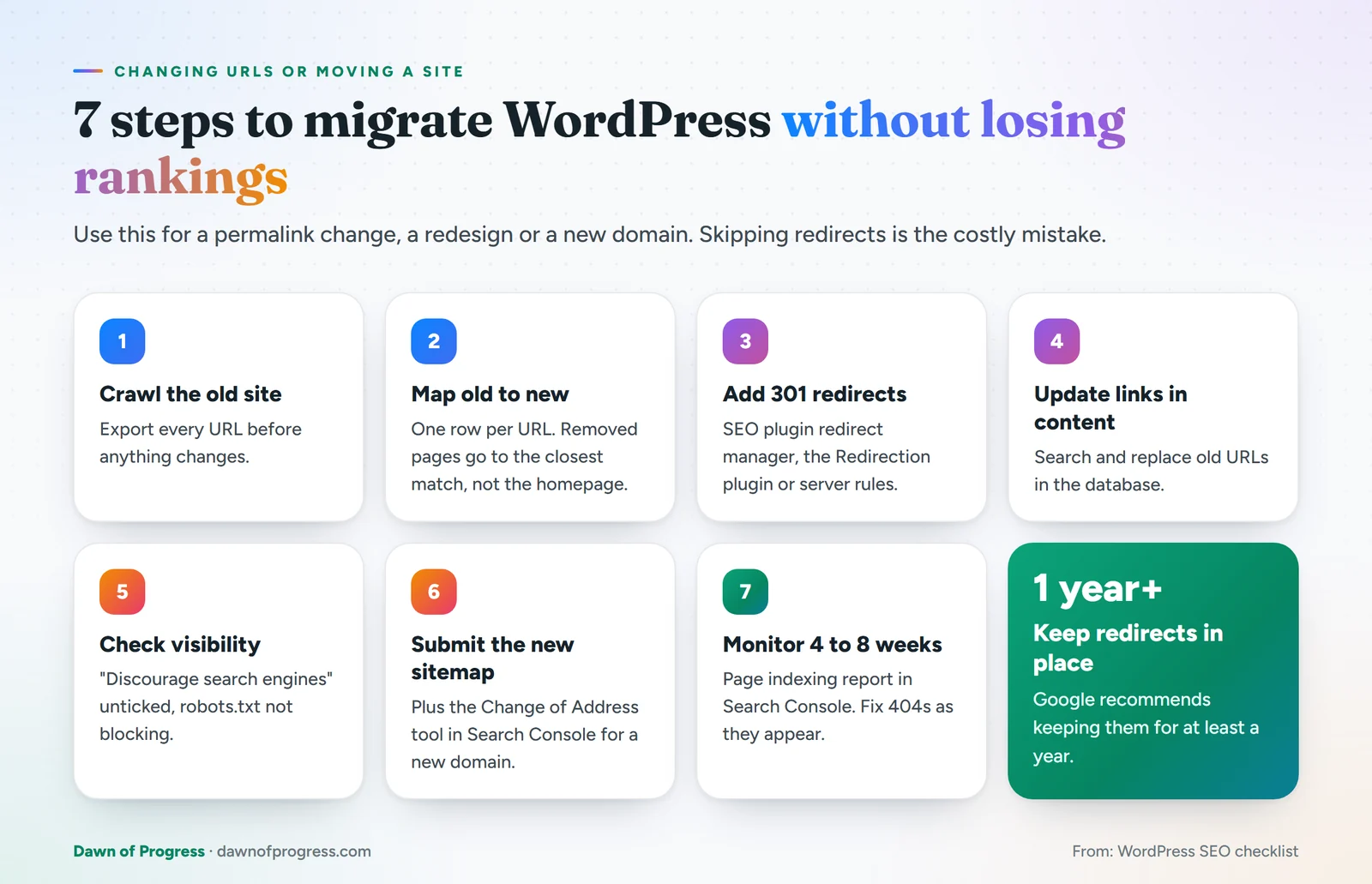
- Crawl the old site and export every URL.
- Map each old URL to its new URL in a spreadsheet. Removed pages go to the closest relevant page, not the homepage.
- Set up 301 redirects with your SEO plugin’s redirect manager, the free Redirection plugin or server rules.
- Update internal links and the database. A search-and-replace tool updates old URLs in your content after a domain or HTTPS change.
- Check the new site isn’t set to “Discourage search engines” and robots.txt doesn’t block it.
- Submit the new sitemap and, for a domain change, use the Change of Address tool in Search Console.
- Monitor for 4 to 8 weeks in Search Console’s Page indexing report and fix 404s as they appear.
Google’s site move guidance recommends keeping redirects in place for at least a year.
What block editor habits help SEO?
The block editor (Gutenberg) is clean enough for SEO if you use it with intent:
- The post title is your H1. Start content headings at H2 with the Heading block, and use H3 for sub-steps. Don’t skip levels for styling; change the font size instead.
- Use real blocks for real content. The Table block for comparisons, List blocks for steps, the Details block for expandable FAQs. Search engines and AI tools quote structured content more easily.
- Edit the slug in the post settings so it’s short and readable (
wordpress-seo, notwordpress-seo-the-complete-2026-checklist-settings).
What is a good WordPress SEO audit routine?
This is close to the routine I follow on client sites. For a full method, see my SEO audit guide, and for the wider technical checks, the technical SEO checklist.
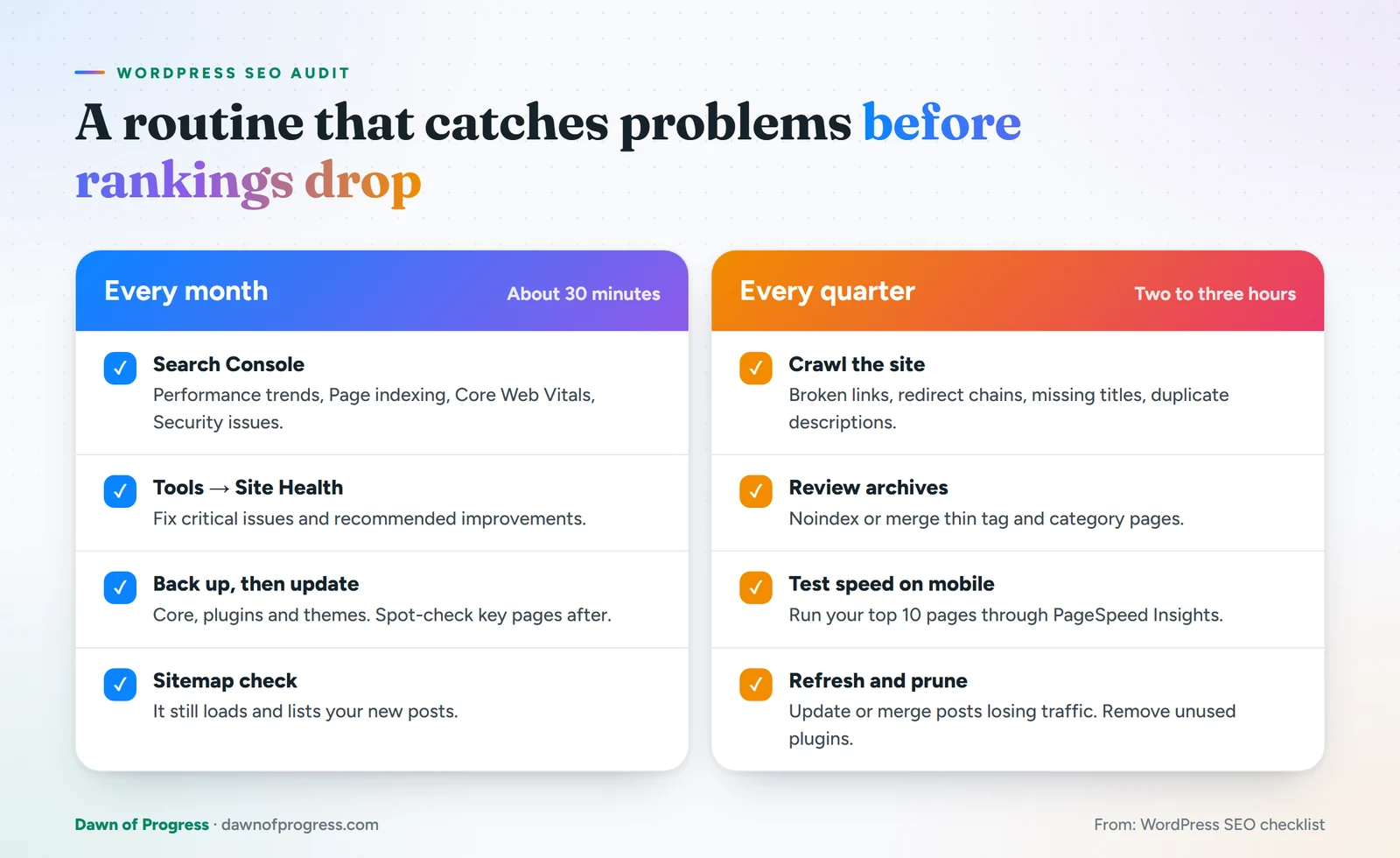
Monthly (about 30 minutes)
- Search Console: Performance trends, Page indexing errors, Core Web Vitals and Security issues.
- Tools > Site Health: fix critical issues and recommended improvements you understand.
- Update core, plugins and themes (after a backup), then spot-check key pages.
- Check that your sitemap still loads and lists new posts.
Quarterly (two to three hours)
- Crawl the site with a crawler such as Screaming Frog (free up to 500 URLs) to find broken links, redirect chains, missing titles and duplicate descriptions.
- Review tag and category archives; noindex or merge the thin ones.
- Run your top 10 pages through PageSpeed Insights on mobile.
- Update or merge posts that have lost traffic, and remove unused plugins.
What does the complete WordPress SEO checklist look like?
Here’s everything in one list, in order:
- Untick “Discourage search engines from indexing this site” (Settings > Reading).
- Set permalinks to Post name (Settings > Permalinks).
- Set a real Site Title, and https URLs on one domain version (Settings > General).
- Moderate comments or turn them off (Settings > Discussion).
- Install and configure one SEO plugin.
- Set title and meta description templates for posts, pages and archives.
- Check your sitemap and submit it to Google Search Console and Bing Webmaster Tools.
- Noindex thin tags, date archives and single-author archives; redirect attachment pages.
- Confirm canonical tags and one redirecting domain version.
- Resize, compress and add alt text to images; use WebP or AVIF where supported.
- Use quality hosting, one caching plugin and a lightweight theme.
- Configure Organization or Person schema and test key pages.
- Link supporting posts to pillar pages; fix orphan pages.
- Keep HTTPS, updates, backups and two-factor login in place.
- Redirect every changed URL with a 301.
- Run the monthly and quarterly audit routine.
What are the most common WordPress SEO mistakes?
- Leaving “Discourage search engines” ticked after launch or after a migration.
- Running two SEO plugins at once, which doubles titles, canonicals and sitemaps.
- Changing permalinks or slugs without redirects.
- Tagging every post with ten new tags, creating hundreds of thin archive pages.
- Installing a plugin for every small task until the site is slow and fragile.
- Ignoring updates until the site gets hacked.
Frequently asked questions
What’s the best SEO plugin for WordPress?
There’s no single best one. Yoast SEO, Rank Math, All in One SEO and The SEO Framework all handle titles, meta descriptions, sitemaps, noindex rules and basic schema. Rank Math includes a redirect manager free; Yoast is the most widely used; The SEO Framework is the lightest.
Is Yoast or Rank Math better?
Both are good. Choose Rank Math if you want redirects and more schema options free; choose Yoast if you prefer a long-established plugin with predictable updates. Switching later is possible: Rank Math, for example, has one-click import from Yoast and AIOSEO.
Do I need an SEO plugin for WordPress?
Not strictly. WordPress creates titles, a sitemap and canonical tags on its own, but a plugin makes titles, indexing and schema much easier to control, so most sites should use one.
Is WordPress better for SEO than Squarespace?
WordPress gives you more control over speed, URLs, redirects and technical settings, which matters on larger or competitive sites. Squarespace is simpler and covers the basics. Either can rank well with good content.
Does WordPress.com allow SEO plugins?
Yes, but only on paid plans that allow plugin installs. Free WordPress.com sites have built-in SEO features but can’t install Yoast, Rank Math or similar plugins.


