
Last updated: November 2026. Written by Syed Usman Riaz.
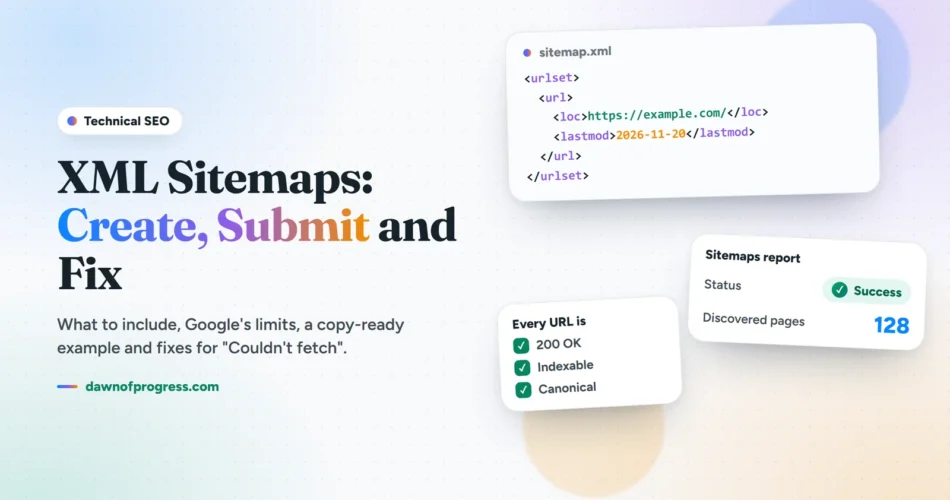
An XML sitemap is a file, usually at yoursite.com/sitemap.xml, that lists the URLs you want search engines to crawl and index. Google allows up to 50,000 URLs or 50 MB (uncompressed) per sitemap file, and reads only two tags in practice: <loc> (the URL) and <lastmod> (when it last changed meaningfully). Include only canonical, indexable pages that return a 200 status, then submit the sitemap in Google Search Console and add it to robots.txt. A sitemap helps Google find pages faster, but it doesn’t guarantee they get indexed.
This guide covers who needs a sitemap, what goes in it, a copy-ready example, how to create one on WordPress, Shopify and other platforms, how to submit it to Google and Bing, and how to fix errors such as “Couldn’t fetch” and “Sitemap could not be read”.
Key takeaways
- A sitemap is a hint, not a command. It speeds up discovery; Google still decides what to crawl and index.
- Only list pages you want in search results: canonical URLs that return 200 and aren’t blocked or set to noindex.
- Limits per file: 50,000 URLs or 50 MB uncompressed, UTF-8, absolute URLs. Bigger sites use a sitemap index.
- Google ignores
<priority>and<changefreq>. Keep<lastmod>honest or it gets ignored too. - Submit once in Search Console, then monitor. Use the Sitemaps report for errors and the Page indexing report, filtered by sitemap, to see what actually got indexed.
What is an XML sitemap?
An XML sitemap is a machine-readable list of the pages on your website that you want search engines to know about. XML (Extensible Markup Language) is a plain-text format that uses tags, a bit like HTML, so software can read it reliably. Google describes a sitemap as a file that tells it about your pages, videos and other files, and how they relate (Google Search Central: sitemaps overview).
Search engines mostly find pages by following links. A sitemap is a second route: a direct list that says “these are my important URLs, and this is when they last changed”. It is part of technical SEO, one layer of what SEO is, covered in full in my technical SEO checklist.
Don’t confuse it with an HTML sitemap, which is a normal web page of links for human visitors. HTML sitemaps can help people, but you can’t submit them in Search Console.
Do you need an XML sitemap?
Probably yes, even if Google says you might not. Google’s own guidance says a sitemap is most useful when:
- Your site is large, so it is harder to make sure every page is linked from somewhere.
- Your site is new and has few external links, so Googlebot has fewer paths to find it.
- You have lots of images or video, or appear in Google News.
Google also says you may not strictly need one if your site is small (about 500 pages or fewer that you want in search), all important pages are reachable by links from the home page, and you don’t rely on image, video or news results.
My position: add one anyway. On WordPress, Shopify, Wix and Squarespace it is generated automatically, so the cost is close to zero, and it gives you the Sitemaps and Page indexing data in Search Console. When I checked my own blog, Google had never been given a sitemap for my posts, and many of them simply weren’t known to it. A sitemap fixed discovery in days.
How does a sitemap help SEO?
A sitemap helps SEO by improving discovery, not rankings. It does three useful things:
- Faster discovery of new and updated pages. Google sees new URLs and fresh
<lastmod>dates without waiting to stumble on them through links. - A canonical signal. Listing a URL in a sitemap is a weak hint that it is the version you prefer. Stronger signals, like the canonical tag and redirects, still win.
- Diagnostics. Search Console shows how many URLs it discovered from each sitemap and which of them are indexed, so you can spot problems page type by page type.
It doesn’t push pages higher or force indexing: Google says a sitemap doesn’t guarantee every item will be crawled and indexed. Strong internal linking matters more than any sitemap.
What does an XML sitemap look like?
Here is a copy-ready sitemap for a small business site. Replace the URLs and dates with your own:
<?xml version="1.0" encoding="UTF-8"?>
<urlset xmlns="http://www.sitemaps.org/schemas/sitemap/0.9">
  <url>
    <loc>https://www.example.com/</loc>
    <lastmod>2026-11-20</lastmod>
  </url>
  <url>
    <loc>https://www.example.com/services/web-design/</loc>
    <lastmod>2026-10-02</lastmod>
  </url>
  <url>
    <loc>https://www.example.com/blog/how-much-does-a-website-cost/</loc>
    <lastmod>2026-11-14T09:30:00+05:00</lastmod>
  </url>
</urlset>
How it works, line by line:
- The first line declares XML version and UTF-8 encoding. It must be the very first thing in the file, with no blank line or space before it.
<urlset>wraps everything and declares the sitemaps.org namespace. Get this URL exactly right or Google reports an incorrect namespace.<url>holds one page.<loc>is the full URL, includinghttps://and the exact version of your domain (www or not).<lastmod>is the date of the last meaningful change, in W3C Datetime format: eitherYYYY-MM-DD, or a full date and time with a time zone, as in the third entry.
Special characters inside URLs must be escaped. An ampersand, for example, is written as &. Unescaped characters are the most common cause of “Parsing error”.
What are Google’s sitemap rules and limits?
Google’s build and submit a sitemap page sets these rules:
| Rule | What it means in practice |
|---|---|
| 50,000 URLs or 50 MB per file | Whichever comes first. The 50 MB limit is for the uncompressed file, even if you serve it gzipped. |
| UTF-8 encoding | Save the file as UTF-8. Most generators do this by default. |
| Absolute URLs | https://www.example.com/page/, never /page/. Google crawls URLs exactly as listed. |
| Same site and location | A sitemap at the root covers the whole site. One in /blog/ only covers URLs under /blog/, unless you submit it through Search Console. |
| Formats accepted | XML, RSS 2.0 and Atom 1.0 feeds, and plain text (one URL per line). XML is the only one that supports image, video, news and language extensions. |
| Sitemap index | Up to 50,000 sitemaps per index file. Nested index files (an index pointing to another index) aren’t supported. |
| Index files per site | Up to 500 sitemap index files per site in Search Console. |
What is a sitemap index file?
A sitemap index is a sitemap of sitemaps. Large sites split URLs into several files (for example by content type: pages, posts, products) and list those files in one index. You then submit only the index. Splitting by type is worth doing even on small sites, because Search Console reports on each child sitemap, which shows you at a glance whether products or blog posts have the indexing problem. Google’s large sitemaps guide shows the format:
<?xml version="1.0" encoding="UTF-8"?>
<sitemapindex xmlns="http://www.sitemaps.org/schemas/sitemap/0.9">
  <sitemap>
    <loc>https://www.example.com/sitemap-pages.xml</loc>
    <lastmod>2026-11-20</lastmod>
  </sitemap>
  <sitemap>
    <loc>https://www.example.com/sitemap-posts.xml</loc>
    <lastmod>2026-11-25</lastmod>
  </sitemap>
</sitemapindex>
Which sitemap tags does Google use?
Google uses <loc> and, when it is trustworthy, <lastmod>. It ignores <priority> and <changefreq> completely.
| Tag | Required? | Does Google use it? | What to do |
|---|---|---|---|
<loc> | Yes | Yes | Full canonical URL of the page |
<lastmod> | No | Yes, if consistently and verifiably accurate | Update only when the page meaningfully changes |
<priority> | No | No, ignored | Leave it out or leave the plugin default; don’t spend time on it |
<changefreq> | No | No, ignored | Same: harmless, but useless for Google |
Bing is a little different: it has said publicly that it relies on accurate <lastmod> dates to decide what to recrawl, especially for its AI-powered search (Bing Webmaster blog, July 2025). Both engines reward the same habit: honest dates.
How should you use lastmod honestly?
Change <lastmod> only when the main content, structured data or links on the page change. Google’s guidance says a changed copyright date in the footer isn’t a meaningful update. When Google retired its sitemap ping tool in 2023, it repeated the point: set <lastmod> accurately and only for pages you can date reliably (Google Search Central blog, June 2023).
The common failure is a sitemap that stamps every URL with today’s date each time it regenerates. Google learns that your dates mean nothing and stops trusting them, which removes the one useful signal your sitemap carries. If your generator does this, switch tools or settings.
What should you include in an XML sitemap, and what should you leave out?
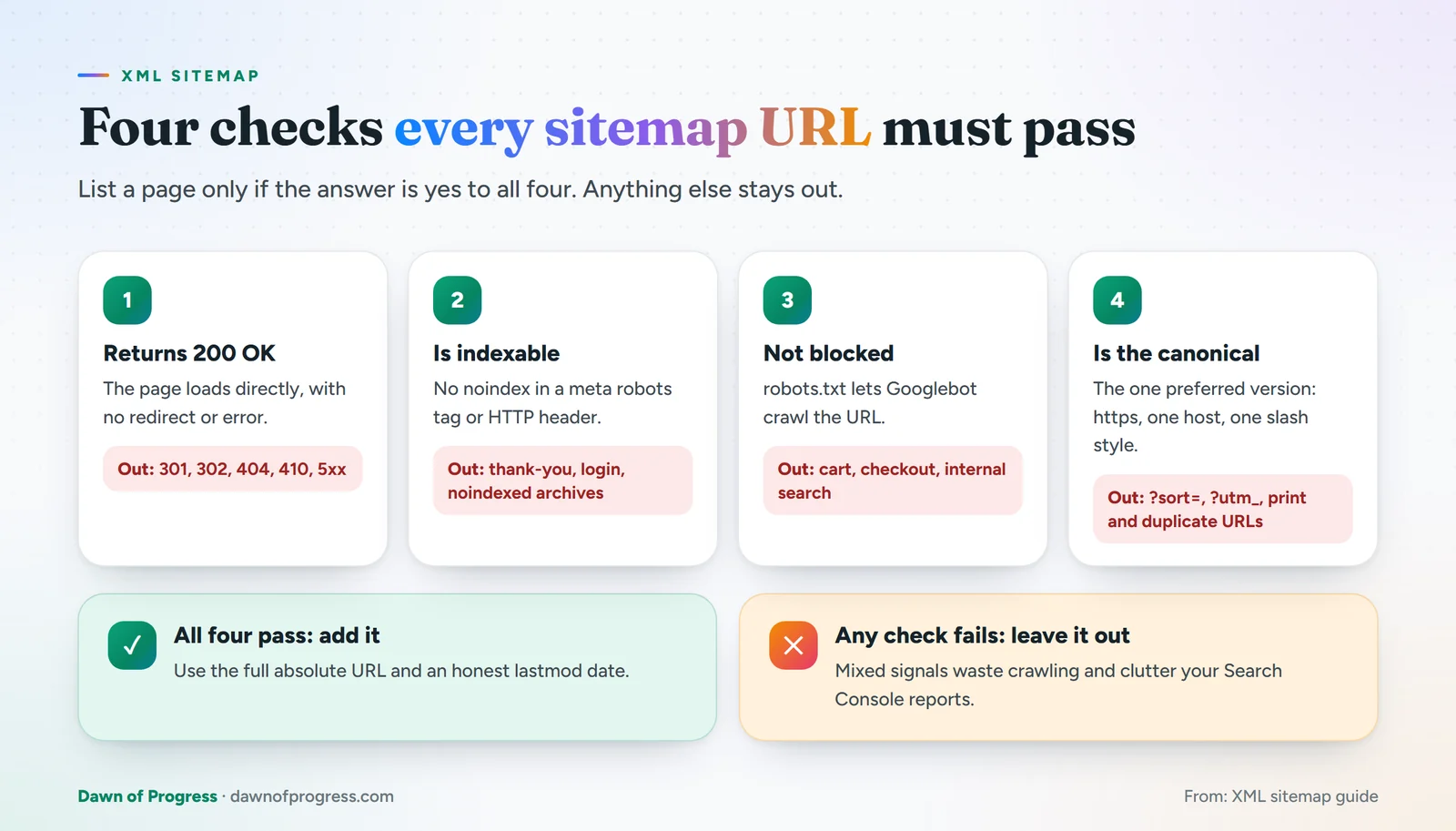
Include only URLs you want to appear in search results. Every URL in your sitemap should pass four checks: it returns a 200 status, it is indexable (no noindex), it is not blocked by robots.txt, and it is the canonical version of the page.
| Include | Leave out |
|---|---|
| Home page, service and product pages | Pages with a noindex tag or header |
| Blog posts and guides you want found | Redirected URLs (301, 302): list the final URL instead |
| Category pages that have real content | Broken pages (404, 410) and server errors |
| Location pages with unique content | Non-canonical duplicates, such as print versions or ?sort=price URLs |
| Important PDFs you want in search | URLs with tracking or session parameters (?utm_source=, ?sessionid=) |
| The one preferred version of each URL (https, www or not, trailing slash or not, consistently) | Pages blocked in robots.txt, login, cart, checkout, thank-you and internal search result pages |
Why this matters: a sitemap full of redirects, 404s and noindexed URLs sends mixed signals. You’re saying “index this” and “don’t index this” at the same time. It also makes the Search Console data noisy, so real problems are harder to see.
What are image, video and news sitemaps?
These are XML sitemap extensions that add extra detail for specific content types. You can add them inside your normal sitemap or keep them in separate files.
- Image sitemaps list images on each page with the
<image:image>and<image:loc>tags. Useful when images load in ways Google may not find, such as through JavaScript. Most sites don’t need one if images are in normal<img>tags. For the rest of image SEO, see my image optimization guide. - Video sitemaps describe videos hosted on your pages: title, description, thumbnail and the video file or player URL. Search Console reports missing thumbnails and titles as errors.
- News sitemaps are for publishers in Google News. They should list only recent articles, and Search Console flags more than 1,000 URLs in a news sitemap as an error.
- Language versions (hreflang) can also be declared in a sitemap with
<xhtml:link>entries.
Most business sites need none of these. Get the basic sitemap right first.
How do you create an XML sitemap?
Most sites already have one. Check first: type yoursite.com/sitemap.xml, yoursite.com/sitemap_index.xml and yoursite.com/wp-sitemap.xml into your browser. Also look at yoursite.com/robots.txt, which often lists the sitemap location.
| Platform | Where the sitemap lives | Notes |
|---|---|---|
| WordPress (no SEO plugin) | /wp-sitemap.xml | Built into core since WordPress 5.5. Basic, with up to 2,000 URLs per child sitemap by default. |
| WordPress with Yoast SEO or Rank Math | /sitemap_index.xml | The plugin replaces the core sitemap and leaves out noindexed content automatically. |
| Shopify | /sitemap.xml | Generated automatically for products, collections, pages and blog posts. You can’t edit it directly; hide pages with noindex settings instead. |
| Wix, Squarespace, Webflow | /sitemap.xml | Generated automatically. Webflow lets you exclude pages in page settings. |
| Custom site or static site | Wherever you publish it, ideally the root | Use your framework’s sitemap module, or a crawler-based generator. |
On WordPress
- If you use Yoast SEO, check that XML sitemaps are switched on in the plugin’s site features settings. In Rank Math, sitemaps live under its Sitemap Settings. Menu names change between versions, so search the plugin settings for “sitemap” if you can’t find it.
- Set the content types you don’t want indexed (tags, media attachment pages, author archives on a one-author blog) to noindex in the plugin. They then drop out of the sitemap automatically.
- Open
/sitemap_index.xmland click into each child sitemap to check the URLs look right.
More setup detail is in my WordPress SEO guide.
With a generator or crawler
For a custom or static site, a crawler such as Screaming Frog SEO Spider (free up to 500 URLs) can crawl the site and export a sitemap. Online generators work the same way. The catch with any crawl-based generator: it’s a snapshot. When you add or remove pages, you must regenerate and re-upload it, so prefer a sitemap your CMS or build process updates automatically. See my list of free SEO tools for options.
By hand
For a site of 10 to 30 pages that rarely changes, you can write the file yourself using the example above, save it as sitemap.xml in UTF-8, and upload it to your site’s root folder.
How do you submit a sitemap to Google?
Submit it in Google Search Console, and also list it in robots.txt. Google’s Sitemaps report help page describes the process:
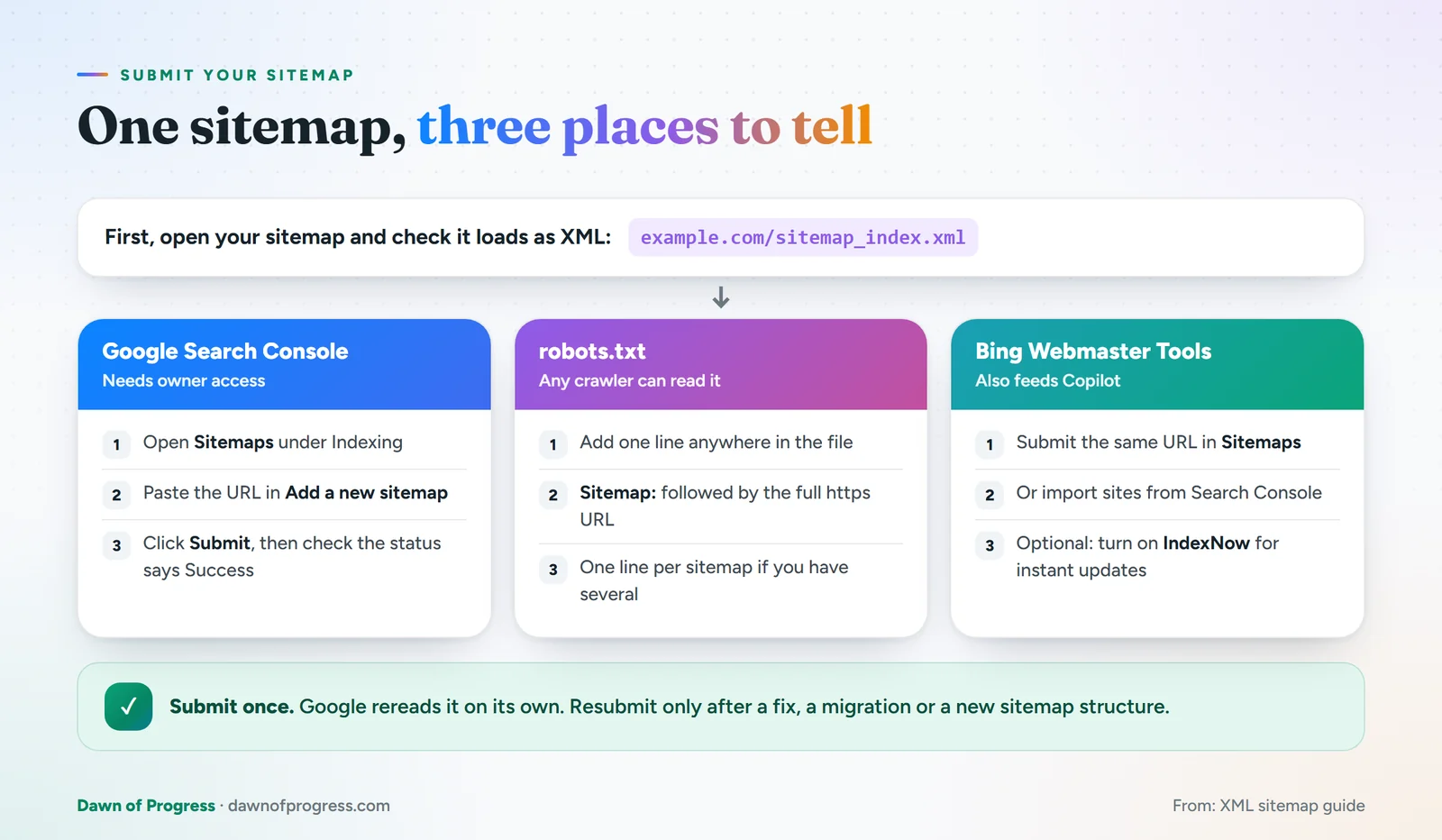
- Verify your site in Google Search Console if you haven’t. You need owner permissions to submit a sitemap. My Google Search Console guide walks through verification.
- Check the sitemap loads. Open the URL in a browser. Optionally, run it through the URL Inspection tool’s live test and confirm the page fetch is successful.
- Open the Sitemaps report from the left menu (under Indexing).
- Paste the sitemap URL into the “Add a new sitemap” box. If you use a sitemap index, submit only the index.
- Click Submit. The sitemap appears in the “Submitted sitemaps” table, usually with a status within minutes to a few days.
Add it to robots.txt
Add one line anywhere in your robots.txt file. This lets Google, Bing and other crawlers find your sitemap even without a Search Console account:
Sitemap: https://www.example.com/sitemap_index.xmlUse the full URL; you can list several sitemaps, one per line.
Submit to Bing too
In Bing Webmaster Tools, open the Sitemaps section and submit the same URL, or import your sites from Google Search Console. Bing also feeds Copilot’s answers.
What about IndexNow?
IndexNow is an open protocol that lets your site notify participating search engines (Bing, Yandex, Seznam, Naver and others) the moment a URL is added, updated or deleted. Bing recommends using it alongside sitemaps: the sitemap gives the full picture, IndexNow gives instant updates. Many WordPress SEO plugins and CDNs offer it as a toggle. Google doesn’t use IndexNow, so it doesn’t replace your Google sitemap.
Do you need to resubmit after every change?
No. Google rereads sitemaps it has already processed on its own schedule. Resubmit only after a major change, such as a site migration or a new sitemap structure, or after fixing an error. The old “ping” URL for Google stopped working at the end of 2023, so plugins that still claim to “ping Google” do nothing useful.
How do you read the Sitemaps report in Search Console?
The Sitemaps report shows each submitted sitemap with its type, submitted date, last read date, status, discovered pages and discovered videos. The status column has three values:
| Status | What it means | What to do |
|---|---|---|
| Success | Google fetched and processed the file without errors | Nothing. Check discovered pages looks right. |
| Has errors | Google read the file but found problems in it; some or all URLs may be skipped | Click the sitemap to see the errors, fix them, resubmit |
| Couldn’t fetch | Google couldn’t download the file at all | Check the URL, robots.txt, server and security settings (see the fixes below) |
Discovered pages is how many URLs Google found in that sitemap. It isn’t how many are indexed. Compare it with the number you expect: far fewer means URLs are missing or the file is truncated; far more means junk URLs are leaking in.
How do you fix “Couldn’t fetch” and “Sitemap could not be read”?
“Couldn’t fetch” in the table and “Sitemap could not be read” on the details page mean the same thing: Google tried to download the file and failed. Work through these checks in order.
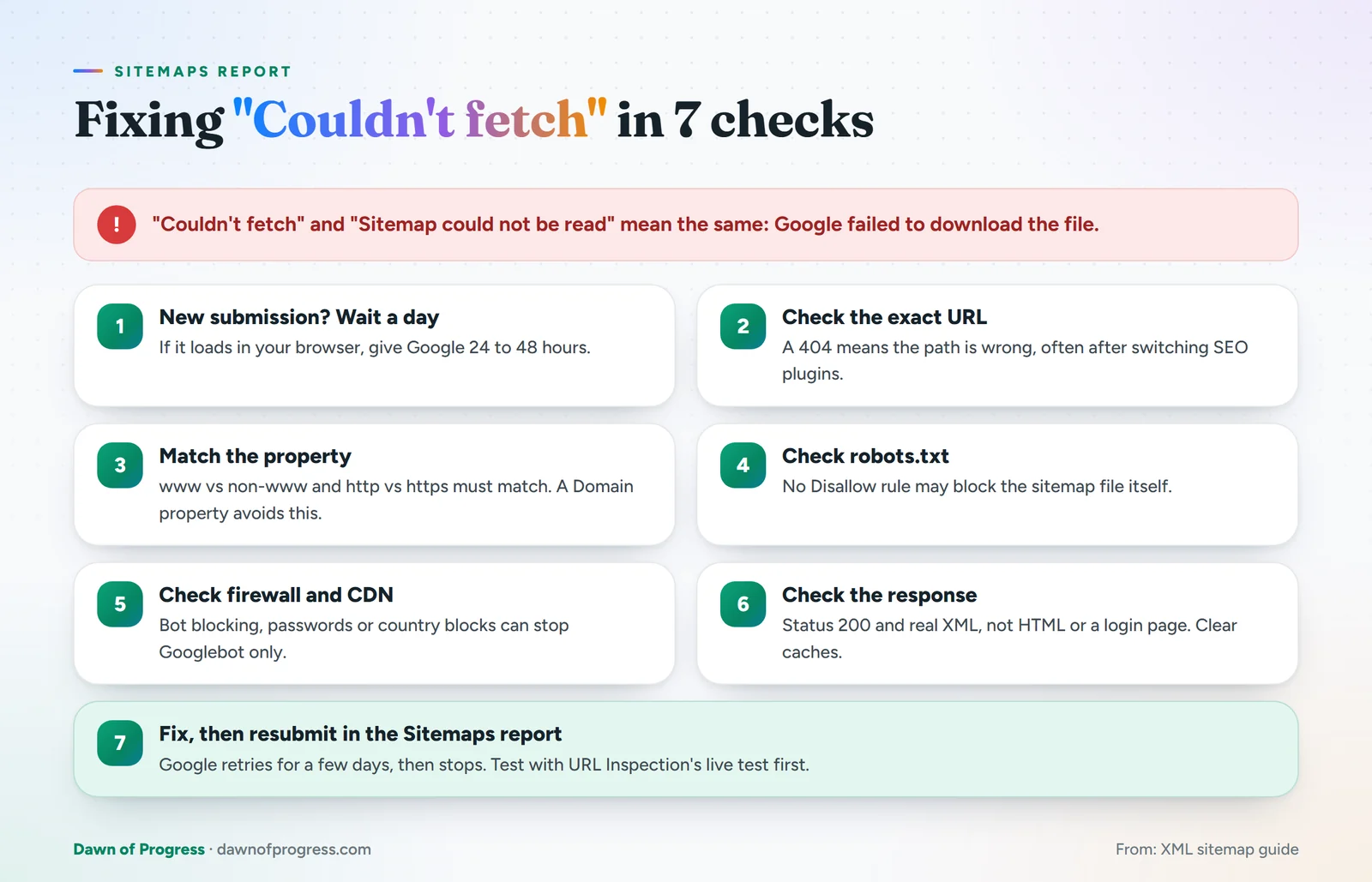
- Wait a day for brand-new submissions. A freshly submitted sitemap sometimes shows “Couldn’t fetch” briefly before it is processed. If the file loads fine in your browser, give it 24 to 48 hours before changing anything.
- Check the exact URL. Open it in a private browser window. A 404 means the path is wrong (for example, you submitted
/sitemap.xmlbut Yoast uses/sitemap_index.xml). - Check the property matches. A sitemap on
https://www.example.com/submitted to a property forhttps://example.com/causes path mismatch errors. Use a Domain property, or submit it to the matching URL-prefix property. - Check robots.txt. Make sure no
Disallowrule blocks the sitemap file. - Check security and CDN settings. Firewalls, “bot fight” modes, password protection on staging and country blocks can stop Googlebot while you can still see the file. Test with URL Inspection’s live test.
- Check the response. The file must return a 200 status and real XML, not an HTML page, a login screen or an error page dressed up as a sitemap. Cached plugin output is a frequent culprit: clear the site and CDN cache.
- Fix and resubmit. Google retries a failed sitemap for a few days, then gives up. Once fixed, submit it again.
In my client work since 2014, the most common cause by far has been a security plugin or CDN rule blocking bots, followed closely by a sitemap URL that changed when someone switched SEO plugins.
Other common sitemap errors and fixes
| Error in Search Console | Likely cause | Fix |
|---|---|---|
| Parsing error | Unescaped &, <, > or quotes in a URL or title | Escape the characters, or let a plugin generate the file |
| Unsupported format | Wrong header or namespace, curly quotes, HTML instead of XML | Start with the XML declaration; copy the namespace exactly |
| Invalid date | Date not in W3C format, or a time without a time zone | Use 2026-11-20 or 2026-11-20T09:30:00+00:00 |
| URL not allowed | URLs on another domain or above the sitemap’s folder | Keep URLs on the same host, at or below the sitemap’s location |
| Path mismatch (www) | Sitemap URLs use www, property doesn’t (or the reverse) | Use one version everywhere and redirect the other |
| URLs not followed | Listed URLs redirect | Replace them with the final destination URLs |
| Too many URLs / file size error | Over 50,000 URLs or 50 MB | Split into several files and use a sitemap index |
| Nested sitemap indexes | An index file points to another index | Point the index only at regular sitemaps |
| Empty sitemap | No URLs in the file | Check the generator settings; submit a sitemap with real URLs |
| Temporary error | Problem on Google’s side or a short server hiccup | Wait several hours, then resubmit if it persists |
| Sitemap contains URLs blocked by robots.txt | Robots.txt disallows listed URLs | Remove those URLs from the sitemap or unblock them |
How do you check which sitemap pages are indexed?
Use the Page indexing report, filtered by sitemap. In Search Console, open Page indexing and use the filter at the top of the report to switch from “All known pages” to “All submitted pages” or to one specific sitemap. You can also click a sitemap in the Sitemaps report to jump straight to its index coverage.
Now the report shows only the URLs you asked Google to index, split into indexed and not indexed, with a reason for each group. Look out for:
- “Excluded by ‘noindex’ tag” or “Page with redirect”: these URLs shouldn’t be in your sitemap. Fix the sitemap source.
- “Duplicate, Google chose different canonical than user”: Google disagrees about which URL is the main one. Check your canonical tags and internal links.
- “Discovered, currently not indexed” or “Crawled, currently not indexed”: Google knows the pages but hasn’t chosen to index them yet. This is usually about quality, duplication or weak internal links, not the sitemap.
A healthy sitemap shows a high share of indexed pages. There’s no official target; as a rough rule of thumb (my estimate, not Google’s), if well under half of a sitemap’s URLs are indexed, audit those pages before adding more. My SEO audit guide covers how.
What are the most common XML sitemap mistakes?
- Listing every URL the CMS can produce. Tag pages, attachment pages, filtered URLs and thin archives dilute the sitemap. List only pages worth ranking.
- Leaving redirects and 404s in the file. Usually caused by static sitemaps that nobody regenerates after a redesign.
- Fake lastmod dates. Every URL showing today’s date teaches Google to ignore your dates.
- Running two sitemaps that disagree. For example, the WordPress core sitemap plus a plugin sitemap, or an old static file left in the root after switching platforms. Submit one source of truth and remove the rest from Search Console.
- Mixing http and https, or www and non-www. Every URL should match your live, canonical version.
Frequently asked questions
How do I submit a sitemap to Google?
Open Google Search Console, go to the Sitemaps report under Indexing, paste the sitemap URL into “Add a new sitemap” and click Submit. Also add a Sitemap: line with the full URL to robots.txt.
Does a sitemap improve rankings?
No, not directly. It helps Google find and recrawl pages faster, which can get new content into search sooner, but rankings still depend on content, links and relevance.
Why does Search Console say “Couldn’t fetch”?
Google couldn’t download the file. Usual causes are a wrong URL, a robots.txt block, a firewall or CDN blocking Googlebot, or a server returning HTML instead of XML. For new submissions, wait a day before troubleshooting.
How often should I update my sitemap?
It should update automatically whenever you publish, change or remove a page. If you maintain it by hand, regenerate it after every change and update <lastmod> only for pages that changed meaningfully.
Should noindex pages be in my sitemap?
No. A sitemap should only contain pages you want indexed. Including noindex pages sends contradictory signals and clutters your reports.


