
Last updated: November 2026. Written by Syed Usman Riaz.
Google Search Console is a free tool from Google that shows how your website performs in Google Search: which searches show your pages, how many people click, which pages are indexed, and what problems Google found. To use it, sign in with a Google account, add your site as a property, verify that you own it, submit your XML sitemap, then check the Performance and Page indexing reports every week. Setup takes about 15 minutes, and data usually starts showing within a few days.
This guide covers every part of Search Console a beginner needs in 2026, in the order you will use it, and ends with five routines that turn the data into more traffic.
Key takeaways
- Use a Domain property if you can. It covers every subdomain and both http and https in one place, verified with one DNS record.
- Submit your sitemap on day one. Then check the Page indexing report to see which pages Google actually indexed.
- The Performance report is where the money is. Queries at positions 8 to 20 and pages with low CTR are your fastest wins.
- “Not indexed” is not always a problem. Redirects, canonicals and intentional noindex pages are supposed to be there. Fix only the pages you want in Google.
- Search Console now reports AI visibility. The Generative AI performance report shows impressions in AI Overviews and AI Mode by page and country.
What is Google Search Console?
Google Search Console is a free service from Google that helps site owners monitor, maintain and fix their site’s presence in Google Search results. You don’t need it to appear in Google, but without it you are guessing. It is the only place that shows the actual searches people typed before they saw your site, using Google’s own data.
Search Console answers four questions:
- Can Google find and index my pages? (Page indexing, Sitemaps, URL Inspection)
- How do my pages perform in search? (Performance, Insights, Generative AI performance)
- Is anything broken or risky? (Core Web Vitals, HTTPS, Manual actions, Security issues)
- Who links to me? (Links report)
Google’s Search Console starter guide covers the basics for owners, marketers and developers. Until 2015 the tool was called Google Webmaster Tools.
How is Search Console different from Google Analytics?
Search Console shows what happens before the click: impressions, rankings and clicks in Google Search. Google Analytics 4 (GA4) shows what happens after the click: what visitors do on your site, from every channel. You need both, and later in this guide you will link them.
| Google Search Console | Google Analytics 4 | |
|---|---|---|
| Data source | Google Search only | All traffic (search, social, email, direct, AI assistants) |
| Shows search queries | Yes | Only through the Search Console link |
| Shows indexing and errors | Yes | No |
| Shows on-site behavior and conversions | No | Yes |
| Cost | Free | Free |
| Data history | 16 months | Depends on retention settings |
How do you set up Google Search Console?
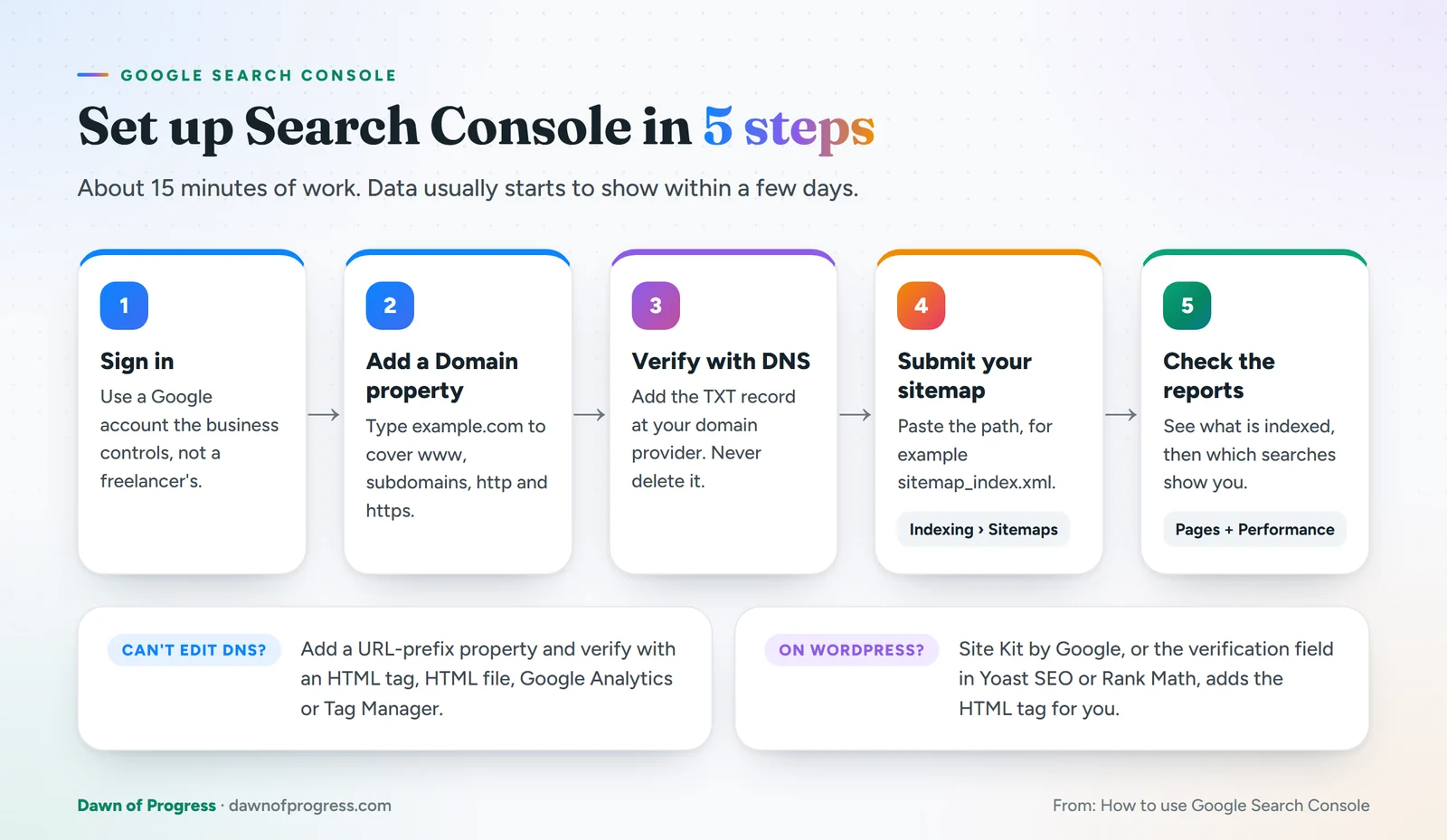
Go to search.google.com/search-console, sign in with the Google account you want to own the data (a business account, not a personal one you might lose), and click Add property. You will choose between two property types.
Domain property or URL-prefix property?
| Domain property | URL-prefix property | |
|---|---|---|
| What you type | example.com | https://www.example.com/ |
| What it covers | All subdomains (www, m, shop) and both http and https | Only URLs that start with that exact prefix |
| Verification | DNS record only | HTML file, HTML tag, Google Analytics, Google Tag Manager, or DNS |
| Best for | Most sites; the full picture | When you can’t edit DNS, or want to track one section separately |
Create a Domain property first. It catches data you would otherwise miss, such as an old http version or a forgotten subdomain. You can still add URL-prefix properties later for a section like https://example.com/blog/.
How do you verify ownership?
Google’s verification help page lists every method. The common ones:
- DNS record (Domain property). Search Console gives you a TXT record. Log in to your domain provider (where you bought the domain, or Cloudflare if it manages your DNS), add a new TXT record, leave the host as
@or blank, and paste the value. Some providers offer an automatic setup that adds the record for you. - HTML tag (URL prefix). Paste a
<meta name="google-site-verification">tag into your homepage<head>. - HTML file upload (URL prefix). Upload the file Google gives you to your site’s root folder.
- Google Analytics or Google Tag Manager (URL prefix). If either is already installed with the same Google account, verification can take one click.
A DNS TXT record looks like this:
Type:  TXT
Host:  @
Value: google-site-verification=AbC123yourUniqueCode
TTL:   Auto
DNS changes can take a few minutes to a day to spread. If verification fails, wait and try again. Never delete the record or tag after verifying. Google checks it periodically, and you lose access if it disappears.
How do you verify a WordPress site?
WordPress users have three easy routes:
- Site Kit by Google (Google’s official plugin) connects your site to Search Console, verifies it and shows key numbers inside the WordPress dashboard.
- SEO plugins such as Yoast SEO and Rank Math have a field for the verification code in their settings. Copy only the code from the HTML tag Search Console gives you, paste it, save, and click Verify in Search Console.
- DNS works for WordPress too, and gives you the better Domain property.
In my client work since 2014, the most common setup problem I see is not technical: the property was verified years ago by a freelancer or agency on their own account, and nobody at the business can see the data. Verify with an account the business controls, then add others as users.
How do you submit a sitemap in Search Console?
An XML sitemap is a file that lists the URLs you want Google to crawl. Most platforms create one automatically: WordPress core makes /wp-sitemap.xml, Yoast and Rank Math make /sitemap_index.xml, and Shopify and Wix make /sitemap.xml.
- Open your sitemap URL in a browser to confirm it loads.
- In Search Console, go to Indexing > Sitemaps.
- Type the sitemap path (for example
sitemap_index.xml) and click Submit. - Come back in a day or two. The status should say Success, with a count of discovered pages.
A sitemap helps Google discover pages; it does not force indexing. When I audited this blog, Google had never been given a sitemap and most posts were unknown to it, which is why sitemaps top my technical SEO checklist.
How do you read the Performance report?
Open Performance > Search results. This is the report you will use most. By default it shows the last 3 months of Web search; you can extend it to 16 months.
The four metrics
| Metric | What it means | What it tells you |
|---|---|---|
| Total clicks | Times someone clicked through to your site from Google Search | Real traffic from search |
| Total impressions | Times a link to your site appeared in results the user saw or could scroll to | Visibility, even without clicks |
| Average CTR | Clicks divided by impressions | How attractive your result is |
| Average position | Average position of your topmost result | Roughly where you rank |
Click all four metric boxes to show them on the chart. Average position is an average across every query and searcher, so a page “at position 9” may be at 3 for some searches and 40 for others. Treat it as a direction, not a fixed rank.
The dimensions (tabs under the chart)
- Queries: the searches that showed your site, including ideas you never planned for. Pair them with keyword research.
- Pages, Countries, Devices and Dates: which URLs, where, on what, and when.
- Search appearance: special result types, such as videos or review snippets, when your site has them.
Click any row to filter the whole report by it. Click a page, then switch to the Queries tab, and you see every search that page appears for.
Search type, dates and compare
- Search type switches between Web, Image, Video and News results.
- Date lets you pick ranges up to 16 months, and the chart can show daily, weekly or monthly totals. Weekly view smooths out weekend dips.
- Compare (inside the Date filter or Add filter) puts two date ranges, two countries or two devices side by side, with a Difference column. Compare the last 28 days with the previous 28 days, or this year with last year, to spot drops early.
Filters and regex
Click Add filter to filter by query, page, country, device or search appearance. Text filters accept “containing”, “not containing”, exact match, and Custom (regex), which uses Google’s RE2 syntax (advanced filtering help). Matching is partial and case-insensitive by default. Useful patterns:
# Question-style queries (great for FAQ and AI-answer content)
^(who|what|why|how|when|where|which|can|does|is|are)\b

# Long queries of six words or more
^([^ ]+ ){5,}[^ ]+$

# Only blog URLs (use on the Page filter)
/blog/

# Exclude your brand name and typos (choose "Doesn't match regex")
dawn ?of ?progress|dawnofprogress
Eligible top-level properties also have a built-in branded queries filter (added November 2025) that splits branded from non-branded searches automatically. Non-branded clicks are the honest measure of whether your SEO is working, because branded searchers would have found you anyway.
What does the Page indexing report tell you?
Go to Indexing > Pages. The chart splits your known URLs into Indexed and Not indexed, and the table below lists the reasons pages were not indexed. Click a reason to see example URLs.
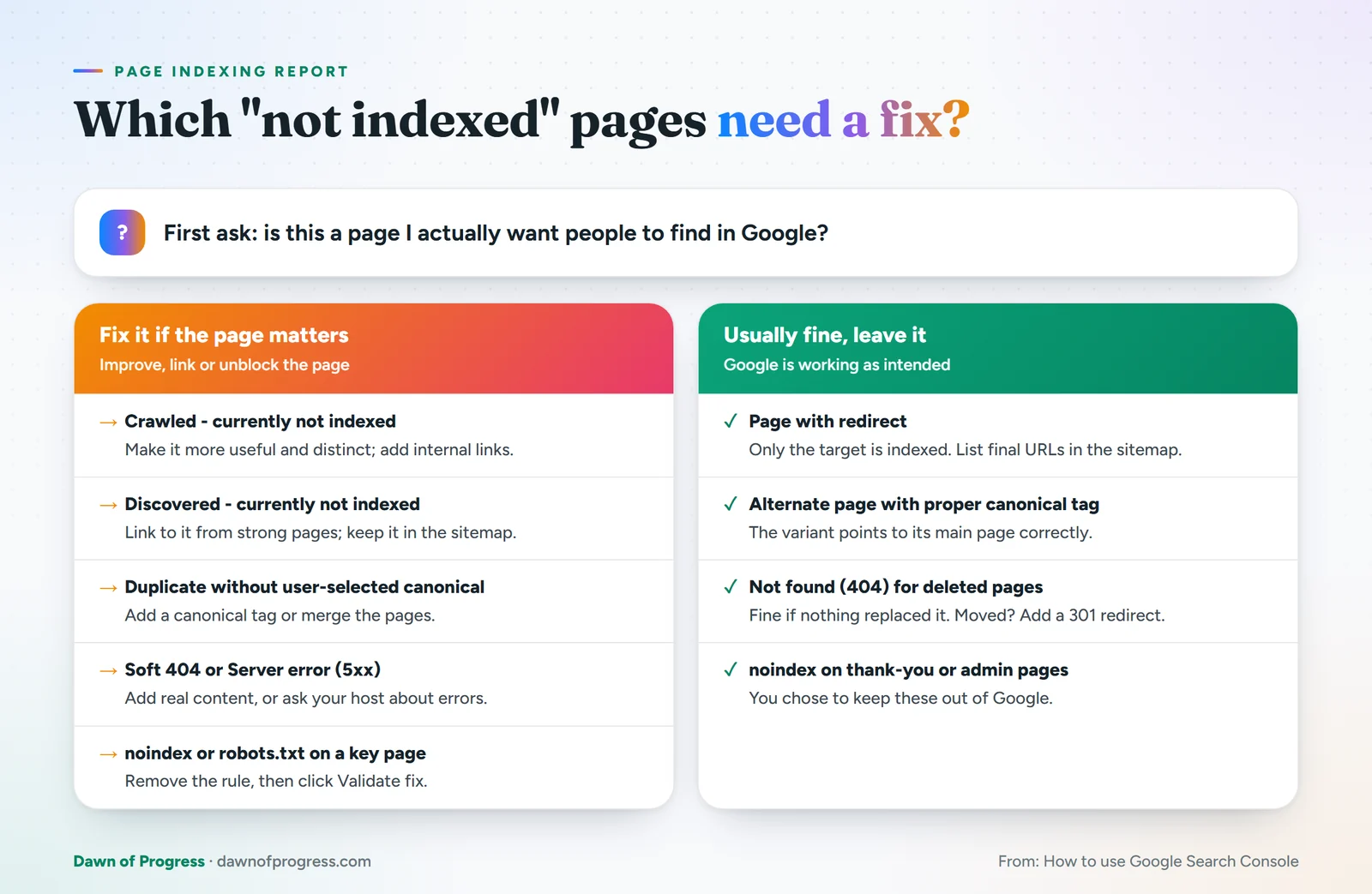
Don’t panic at a big “Not indexed” number; many entries are correct behavior. Ask one question: is a page I want in Google on this list? The common statuses, based on Google’s Page indexing report help:
| Status | What it means | What to do |
|---|---|---|
| Crawled – currently not indexed | Google crawled the page and chose not to index it, for now | Improve the content, make it clearly different from similar pages, add internal links. Don’t just resubmit |
| Discovered – currently not indexed | Google knows the URL but hasn’t crawled it yet | Add internal links from strong pages, keep it in the sitemap, check server speed |
| Duplicate without user-selected canonical | Google sees it as a duplicate and picked another page as the main version | Add a canonical tag pointing to the page you prefer, or merge the pages |
| Duplicate, Google chose different canonical than user | You set a canonical, but Google preferred another URL | Check the pages really differ, and make internal links and sitemap point to your preferred URL |
| Alternate page with proper canonical tag | A variant correctly points to its main page | Nothing; this is working |
| Not found (404) | The URL returns “not found” | Fine for deleted pages. If the content moved, add a 301 redirect |
| Soft 404 | Page says “not found” or is near-empty, but returns a 200 status | Add real content, or return a proper 404 or redirect |
| Page with redirect | The URL redirects elsewhere | Normal. Just make sure the sitemap lists final URLs, not redirecting ones |
| Blocked by robots.txt | Your robots.txt stops Google crawling it | Remove the rule if you want it indexed |
| Server error (5xx) | Your server failed when Google asked for the page | Talk to your host; check for downtime or a firewall blocking Googlebot |
Pages excluded by a noindex tag also appear here. If an important page is on that list, check your SEO plugin and the WordPress setting “Discourage search engines from indexing this site” under Settings > Reading.
After you fix every URL in an issue, open that issue and click Validate fix. Google rechecks the URLs over the following days or weeks and emails you the result.
How do you use URL Inspection and Request indexing?
Paste any URL from your property into the search bar at the top of Search Console. URL Inspection shows whether the URL is on Google (and if not, why), how Google discovered it, the last crawl date, and the canonical you declared versus the one Google selected. Click Test live URL to check the current version, and View tested page to see the HTML and screenshot Googlebot rendered.
Request indexing asks Google to recrawl the URL. Use it for a new page or a page you meaningfully updated. It is limited to a small daily quota per property, and it doesn’t guarantee indexing or speed up ranking. Clicking it every day on the same page does nothing extra. If Google keeps declining a page, the fix is the page itself, its internal links or its uniqueness.
What do the Core Web Vitals and HTTPS reports show?
Both sit under Experience in the left menu.
The Core Web Vitals report uses real Chrome user data to group your URLs into Good, Needs improvement and Poor, separately for mobile and desktop. It measures three things:
| Metric | Measures | “Good” threshold |
|---|---|---|
| LCP (Largest Contentful Paint) | Loading: when the main content appears | 2.5 seconds or less |
| INP (Interaction to Next Paint) | Responsiveness: delay after a tap or click | 200 milliseconds or less |
| CLS (Cumulative Layout Shift) | Visual stability: how much the layout jumps | 0.1 or less |
Small sites often see “Not enough usage data”, which is normal; test single pages in PageSpeed Insights instead. Fixes usually involve image sizes, caching and heavy scripts, covered in image optimization and website speed optimization.
The HTTPS report shows how many of your indexed URLs are served over HTTPS and lists problems such as an invalid certificate or an http page Google picked as canonical. On a healthy site, the non-HTTPS count is zero.
What does the Links report show?
Open Links in the left menu. It has two halves:
- External links: your top linked pages, top linking sites and top linking text (anchor text) from other websites.
- Internal links: your pages ranked by how many internal links point to them.
The external data is a sample, not a full backlink index. For beginners, the internal half is more useful: if a key service page has three internal links and your privacy policy has two hundred, you are telling Google the wrong page matters. Add links from related posts with descriptive anchor text, as explained in my on-page SEO guide.
What are Manual actions and Security issues?
Both live under Security & Manual Actions, and both should say “No issues detected.”
A manual action is a penalty applied by a human reviewer at Google when a site breaks Google’s spam policies, for example with unnatural links, scaled thin content or cloaking. Affected pages or the whole site can drop from results. Fix every instance, then click Request review and explain what you changed.
Security issues covers hacked content, malware and harmful downloads, and social engineering (deceptive pages). Google may show warnings to searchers while the issue remains. Clean the site, close the hole that let the attacker in (often an outdated plugin or theme), then request a review.
Search Console emails owners and users when either report finds something, so make sure those alerts reach an inbox someone reads.
When should you use the Removals tool?
Indexing > Removals hides a URL from Google Search results for about six months. Use it in emergencies: a page with private data went live, or a staging copy got indexed. It does not delete the page from Google’s index permanently.
For permanent removal, also delete the page (404 or 410), put it behind a password, or add a noindex tag. Don’t use robots.txt for this: a blocked page can stay indexed because Google can’t see the noindex. For normal pruning, skip the tool and use 404s or 301 redirects.
How do you add users and set permissions?
Go to Settings > Users and permissions and click Add user. Only owners see this page. There are three main roles:
| Role | Can do | Give it to |
|---|---|---|
| Owner | Everything, including adding users and changing settings | You or the business itself |
| Full user | See all data and take most actions, such as submitting sitemaps | Your SEO freelancer or agency |
| Restricted user | View most data only | Managers, writers, clients who just need to look |
Give the lowest role that does the job. When a freelancer or agency leaves, remove their access and any verification token they added. Check this page once a quarter.
How do you link Search Console with Google Analytics 4?
Linking puts Search Console’s query and landing page data next to GA4’s engagement and conversion data. You need the Editor role in GA4 and verified owner access in Search Console.
- In GA4, open Admin, and under Product links click Search Console links.
- Click Link, choose your Search Console property, then click Next.
- Select your web data stream, review and Submit.
- In GA4, open Reports > Library, find the Search Console collection and Publish it so the reports appear in the left menu.
You will then see two reports, Google Organic Search Queries and Google Organic Search Traffic. One web data stream can link to one Search Console property. Data takes about 48 hours to appear.
What AI features does Search Console have in 2026?
Search Console added several AI-related features in late 2025 and 2026. Here is what Google has officially confirmed, as of November 2026:
Generative AI performance report
Announced on 3 June 2026 and rolled out to all websites by 31 August 2026, the Search Generative AI performance reports show how often your pages appeared in AI Overviews and AI Mode in Search, with a separate report for generative AI features in Discover. Today the report shows impressions only, broken down by page, country, device and date. It does not show the queries that triggered the AI answer, and the same data is also included in your overall Performance totals. Google says more metrics will follow.
Compare its page list with pages that are losing clicks. More on strategy in SEO vs GEO and zero-click searches.
Generative AI opt-out control
Google added a setting in Search Console that lets a site opt out of appearing in, and grounding, generative AI features in Search (AI Overviews, AI Mode and AI Overviews in Discover). Google says opting out is not used as a ranking signal for normal results, but opted-out sites get no impressions or traffic from those AI features. Most businesses should leave it on; think carefully before you give up that visibility.
AI-powered configuration (experimental)
Announced in December 2025 as an experiment for a limited set of sites, this lets you type a request such as “compare clicks for blog pages this quarter with last quarter” in the Performance report, and Search Console sets the filters for you. Check the filters before trusting the numbers, because it can misread requests.
5 Search Console routines that bring results
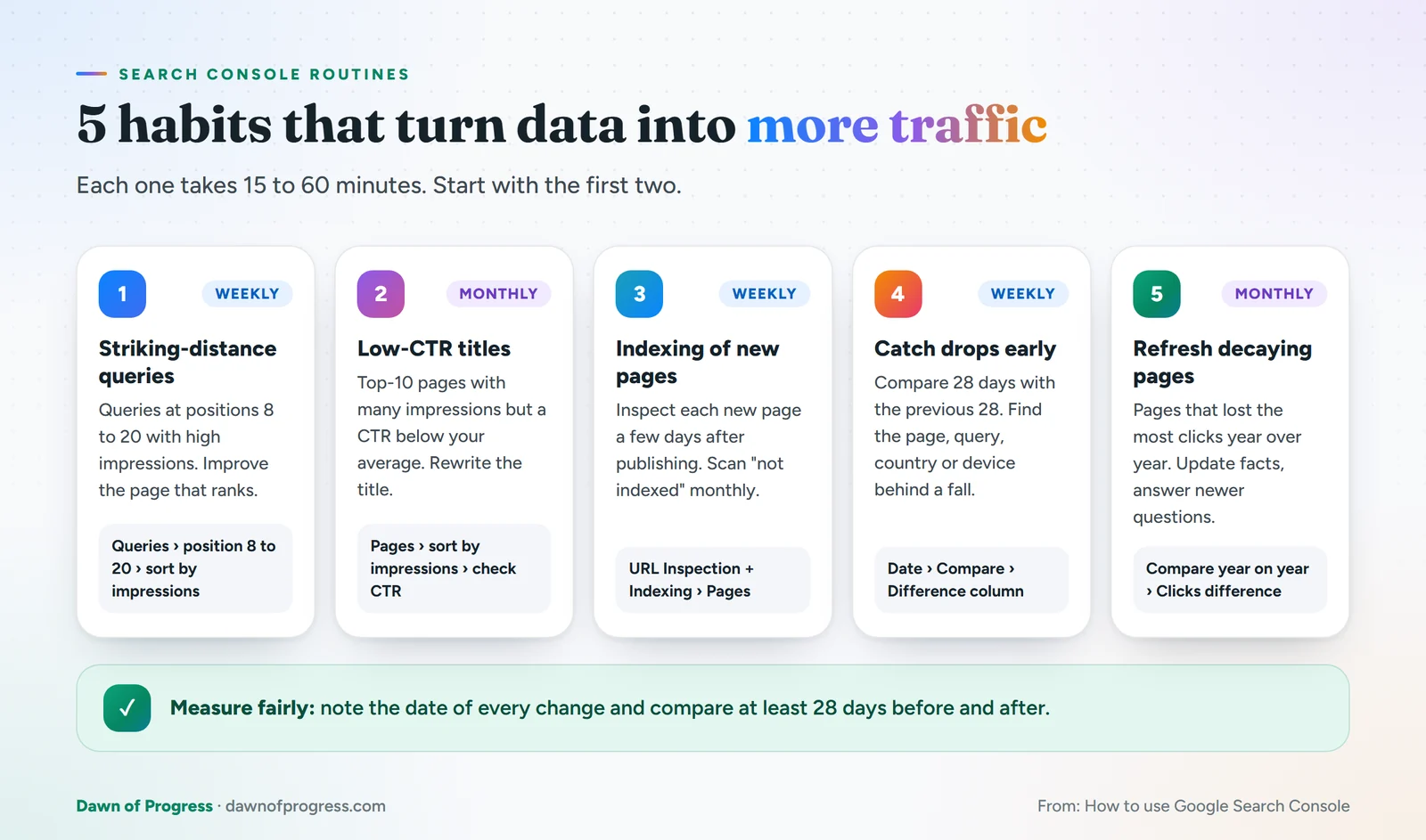
These five routines take 15 to 60 minutes each. For small sites, the first two usually bring the biggest gains.
1. Find striking-distance queries (weekly)
Queries ranking at positions 8 to 20 are close to page one or close to the top 3, and small improvements can move them.
- Performance > Search results, last 3 months, all four metrics on.
- On the Queries table, click the filter icon and set Position greater than 7.9, then add Position smaller than 20.1.
- Sort by Impressions, highest first.
- Click a query, then the Pages tab, to see which page ranks.
- Improve that page: answer the query directly in a heading and the first lines under it, add missing subtopics, and add internal links using similar anchor text.
2. Rewrite titles on low-CTR pages (monthly)
- Open the Pages tab, sort by Impressions.
- Look for pages with many impressions but a CTR well below your site average, while their position is in the top 10.
- Check what the page ranks for (click it, then Queries).
- Rewrite the title tag and meta description to match that intent, include the main term near the start, and add a clear reason to click. My guide to meta descriptions covers how.
- Note the date, then compare 28 days before and after.
Before: “Services | Example Studio” (generic, no reason to click) After: “Logo Design for Small Businesses: 3 Concepts in 7 Days” (matches the query, adds specifics)
Only use specifics that are true for your business.
3. Check indexing of new and key pages (weekly)
Inspect each new page with URL Inspection a few days after publishing. Monthly, scan both “currently not indexed” statuses in the Page indexing report for pages you care about.
4. Catch drops early (weekly)
Compare the last 28 days with the previous 28. If clicks fell, use the dimension tabs to see whether one page, query, country or device caused it. Check the Google Search Status Dashboard for a core update before rewriting anything in a panic.
5. Refresh decaying pages (monthly or quarterly)
Compare the last 3 months with the same period last year on the Pages tab, sorted by Clicks difference. The biggest losers are your refresh list: update facts, answer newer questions from the Queries tab, and tighten the intro. An AI-assisted SEO workflow speeds up the outlines, as long as a human checks every fact.
What are the most common Search Console mistakes?
- Verifying only one version of the site. A URL-prefix property for
https://www.misses traffic to the non-www or http versions. Use a Domain property. - Panicking over “Not indexed” counts. Redirects, canonical alternates and filtered URLs belong there. Look only for pages you want indexed.
- Treating Request indexing as a fix. It asks for a recrawl; it doesn’t fix thin, duplicate or poorly linked pages.
- Judging changes after three days. Compare at least 28 days.
- Ignoring non-branded data. Rising brand clicks can hide falling non-brand traffic. Use the branded queries filter or a brand regex.
- Submitting sitemaps full of redirects or noindex pages. List only canonical, indexable URLs that return 200.
Frequently asked questions
Is Google Search Console free?
Yes. Search Console is completely free, with no paid version. You only need a Google account and the ability to verify your website.
How long does it take for data to appear in Search Console?
Usually a few days after verification. Performance data is typically a day or two behind, and the newest days are marked as preliminary until processing finishes.
How do I use Google Search Console for SEO?
Use it to find queries you almost rank for, rewrite titles on pages with low CTR, fix indexing problems on important pages, and measure the effect of your changes. It tells you where to work; your content and site improvements do the rest. Start with what is SEO if the basics are new.
Why is my page “Crawled – currently not indexed”?
Google crawled it but decided it wasn’t worth indexing yet, often because it is thin, very similar to other pages, or has few internal links. Improve the page and link to it from relevant pages, then request indexing once.
Does Search Console show AI Overview traffic?
Yes, partly. The Generative AI performance report shows impressions in AI Overviews and AI Mode by page, country and device. It doesn’t show which queries triggered them.


