
Last updated: November 2026. Written by Syed Usman Riaz.
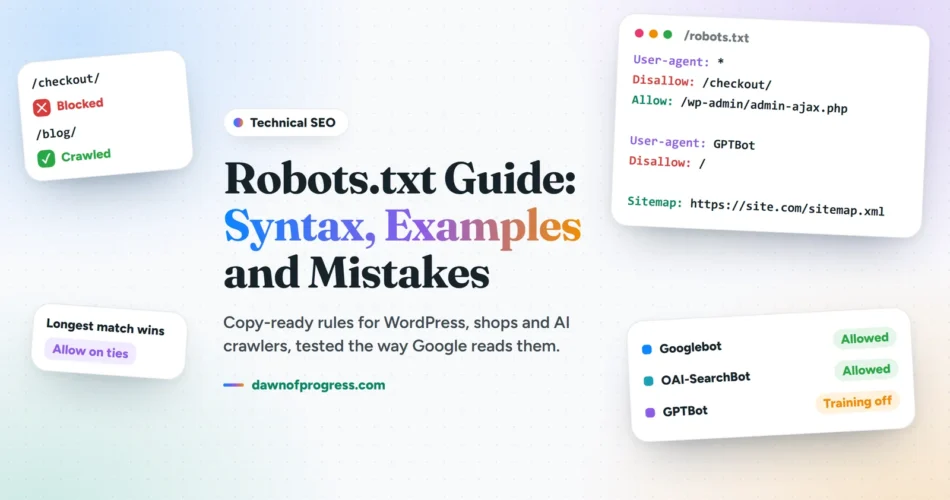
A robots.txt file is a plain text file at the root of your site (for example https://www.example.com/robots.txt) that tells crawlers which URLs they may request. It controls crawling, not indexing: Google can still list a blocked URL, without its content, if other pages link to it, so use a noindex tag to keep a page out of search. Google reads only four fields (user-agent, disallow, allow and sitemap), ignores crawl-delay, ignores anything past 500 KiB, and when rules conflict it follows the longest matching rule.
This guide goes deeper than the robots.txt check in my technical SEO checklist. It covers the syntax line by line, how Google settles conflicts, what happens when the file returns an error, copy-ready examples (including WordPress, online shops and AI crawlers) and how to test the file before it costs you traffic.
Key takeaways
- robots.txt stops crawling, not indexing. To keep a page out of Google, allow crawling and add
noindex. Never do both on the same URL. - The most specific rule wins. Google follows the longest matching path; if an
Allowand aDisallowtie, theAllowwins. - A crawler obeys one group only. If you add a
User-agent: Googlebotgroup, Googlebot ignores everything in theUser-agent: *group. - Never block CSS, JavaScript or image folders that your pages need to display. Google renders pages like a browser.
- Blocking GPTBot, ClaudeBot or Google-Extended doesn’t remove you from Google Search. Blocking Googlebot, OAI-SearchBot or PerplexityBot removes you from that company’s search results.
- Test every change in Search Console’s robots.txt report and with URL Inspection before and after you publish it.
What is robots.txt, and where does it live?
robots.txt is a set of instructions for crawlers, the programs (also called bots or spiders) that download web pages for search engines and AI companies. It follows the Robots Exclusion Protocol, a standard that dates back to 1994 and became an official internet standard (RFC 9309) in 2022.
The file has strict location rules (Google’s robots.txt specification):
- It must sit in the top-level directory of the host:
https://www.example.com/robots.txt. A file at/blog/robots.txtis never read. - It applies only to the exact host, protocol and port it is served from.
https://example.com,https://www.example.com,http://www.example.comandhttps://shop.example.comeach need their own file (in practice, redirects take care of the http and non-www versions). - It must be UTF-8 plain text. Google ignores lines it can’t parse.
- The name is lowercase:
robots.txt, notRobots.TXT.
With no file, crawlers assume they may crawl everything. That’s fine, but a short file is also the standard place to point crawlers to your XML sitemap.
What can robots.txt do, and what can’t it do?
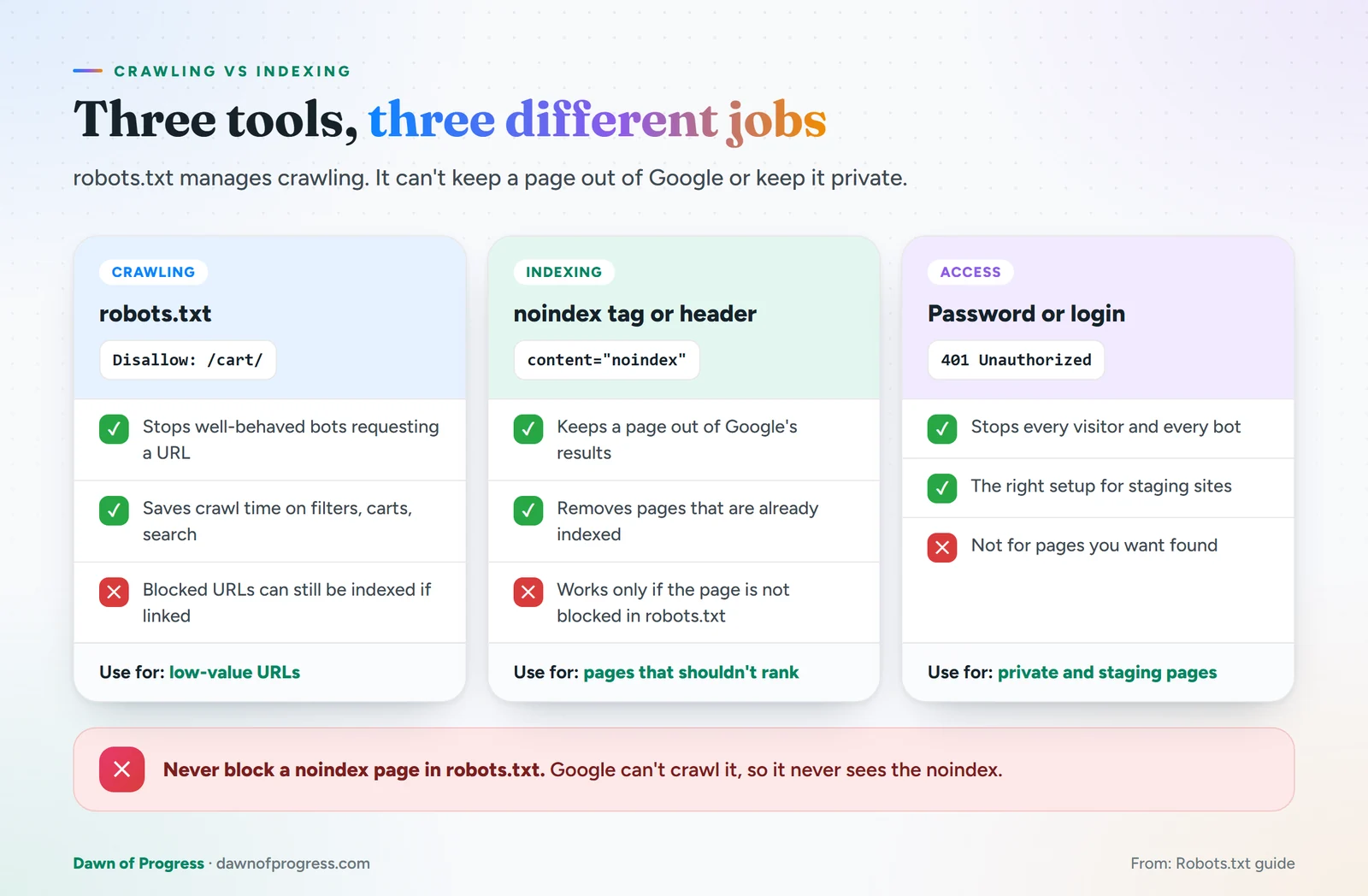
robots.txt is a crawl manager. It tells well-behaved bots where not to spend their time. Google’s own introduction to robots.txt says its main job is to stop your site from being overloaded with requests, and that it is not a way to keep a page out of Google.
| Job | Does robots.txt do it? | What to use instead |
|---|---|---|
| Stop crawlers wasting time on filter, cart or search URLs | Yes | |
| Point crawlers to your XML sitemap | Yes | |
| Keep a page out of Google’s results | No | noindex robots meta tag or X-Robots-Tag header |
| Remove a page that is already indexed | No | noindex, a 404 or 410, then Search Console’s Removals tool for urgent cases |
| Hide private or confidential pages | No (the file is public) | Password protection or a login |
| Stop bad bots and scrapers | No (they ignore it) | Firewall, CDN bot rules, rate limits |
| Slow Googlebot down | No (Google ignores crawl-delay) | Google adjusts automatically; return 503 or 429 temporarily in an emergency |
| Choose a canonical URL | No | rel="canonical" and redirects |
Why is a blocked page still showing in Google?
Because blocking crawling doesn’t block indexing. If other pages link to a blocked URL, Google can still index the address and show it with no description, often with a line saying no information is available. In Search Console, these URLs appear in the Page indexing report as “Indexed, though blocked by robots.txt”.
The fix sounds backwards: unblock the page in robots.txt and add a noindex tag. Google has to crawl the page to see the tag. Once it has dropped out of the index, you can leave it that way. For duplicate versions of a page, the better tool is usually a canonical tag, explained in my canonical tag guide.
Is robots.txt a security tool?
No. The file is public, so listing /secret-admin-panel/ in it tells everyone where to look. Reputable crawlers obey it; scrapers and attackers don’t. Protect private pages with a password.
What does the robots.txt syntax look like?
A robots.txt file is a list of groups. Each group starts with one or more User-agent lines, followed by the rules for those crawlers. Here is a small, complete file with comments:
# Rules for every crawler without its own group
User-agent: *
Disallow: /cart/
Disallow: /checkout/
Allow: /checkout/help/

# Rules only for Google's image crawler
User-agent: Googlebot-Image
Disallow: /private-photos/

Sitemap: https://www.example.com/sitemap.xml
User-agent
User-agent names the crawler the group applies to. * means “every crawler that doesn’t have its own group”. The value is not case-sensitive, so googlebot and Googlebot are the same. You can stack several User-agent lines above one set of rules to share them.
Disallow
Disallow gives a path the crawler must not request. The path starts after the domain and is case-sensitive: Disallow: /Photos/ does not block /photos/. Rules match from the start of the path, so Disallow: /blog blocks /blog, /blog/, /blog/post-1/ and also /blog-news/. Add a trailing slash (/blog/) to block only the folder. An empty Disallow: blocks nothing.
Allow
Allow makes an exception inside a blocked area. The classic example is WordPress, which blocks /wp-admin/ but allows /wp-admin/admin-ajax.php because themes and plugins use that file on public pages.
Wildcards: * and $
Google supports two special characters (and no full regular expressions):
*matches any sequence of characters, including none.Disallow: /*?blocks every URL with a query string. A*at the end of a rule does nothing extra, so/fish*equals/fish.$marks the end of the URL.Disallow: /*.pdf$blocks URLs that end in.pdf, but not/guide.pdf?download=1.
Sitemap
Sitemap: gives the full, absolute URL of an XML sitemap. It isn’t tied to any user-agent group, can appear anywhere in the file, and you can list several. Google and Bing both read it.
Comments
Anything after # on a line is ignored. Use comments to note why a rule exists.
What Google ignores
Google supports only user-agent, allow, disallow and sitemap. It ignores crawl-delay, noindex (Google stopped honouring noindex in robots.txt in 2019), host and anything else. Other crawlers may differ: Anthropic, for example, says its bots support crawl-delay. Field names are not case-sensitive, and spaces after the colon are optional.
How does Google decide which rule wins?
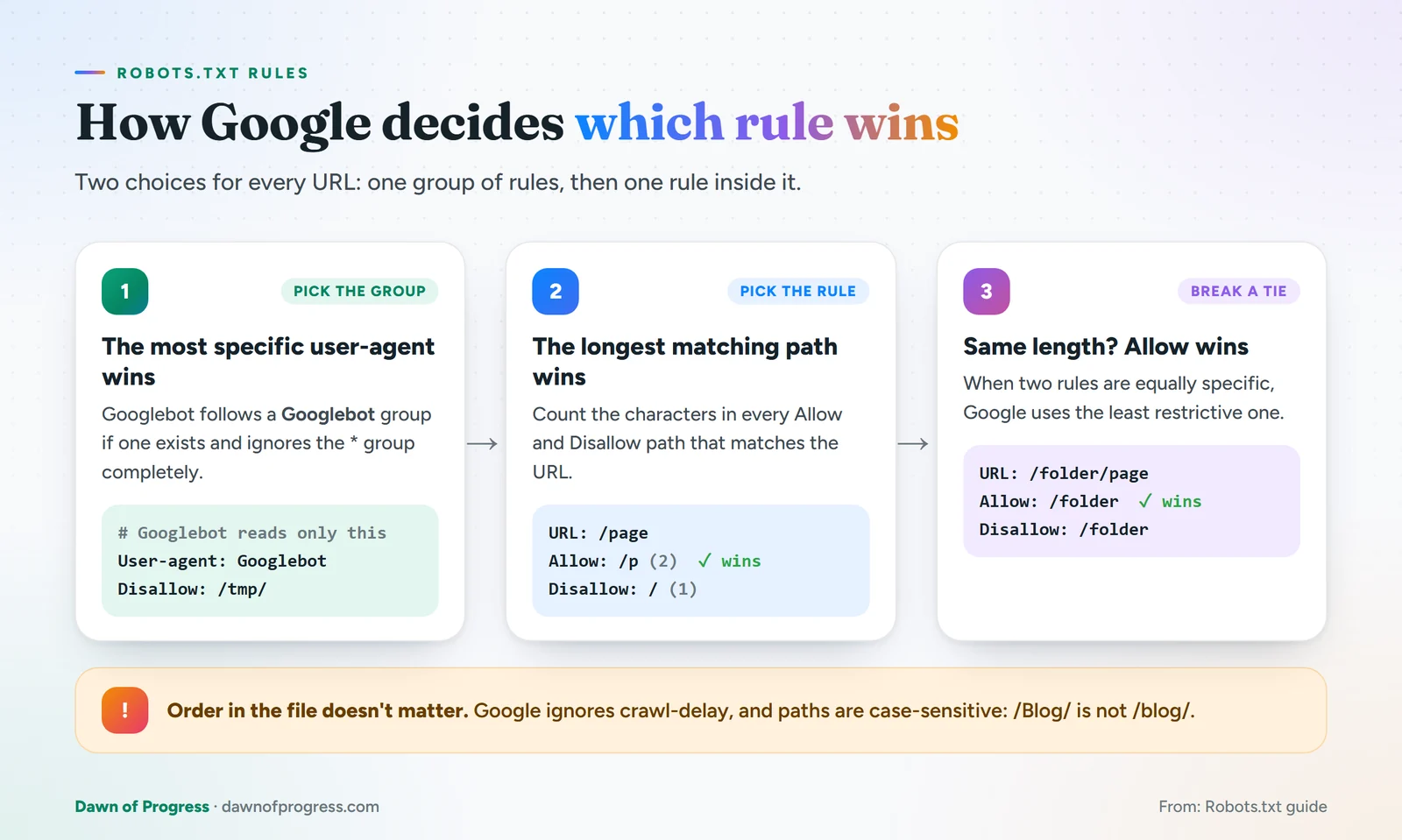
Google settles every request in two steps: first it picks one group, then it picks one rule inside that group.
Step 1: pick the group
A crawler uses only the group with the most specific user-agent that matches it and ignores all the others. Order in the file doesn’t matter. So if your file has a User-agent: * group and a User-agent: Googlebot group, Googlebot follows only its own group. Any rule you put in * must be repeated in the Googlebot group if you want Googlebot to obey it too. If two groups name the same crawler, Google merges them.
Step 2: pick the rule
Inside the group, Google finds every Allow and Disallow rule that matches the URL and follows the longest (most specific) one. If an Allow and a Disallow rule are equally long, Google uses the least restrictive, which is the Allow.
| Rules | URL | Result | Why |
|---|---|---|---|
Allow: /p and Disallow: / | /page | Allowed | /p is longer than / |
Allow: /folder and Disallow: /folder | /folder/page | Allowed | Same length, so the least restrictive rule wins |
Allow: /page and Disallow: /*.htm | /page.htm | Blocked | /*.htm is longer and matches more characters |
Allow: /$ and Disallow: / | / | Allowed | /$ matches only the homepage exactly |
Disallow: /wp-admin/ and Allow: /wp-admin/admin-ajax.php | /wp-admin/admin-ajax.php | Allowed | The Allow path is longer |
These examples come from Google’s specification. Other crawlers may resolve conflicts differently, so avoid overlapping rules you don’t need.
What happens if robots.txt is missing or returns an error?
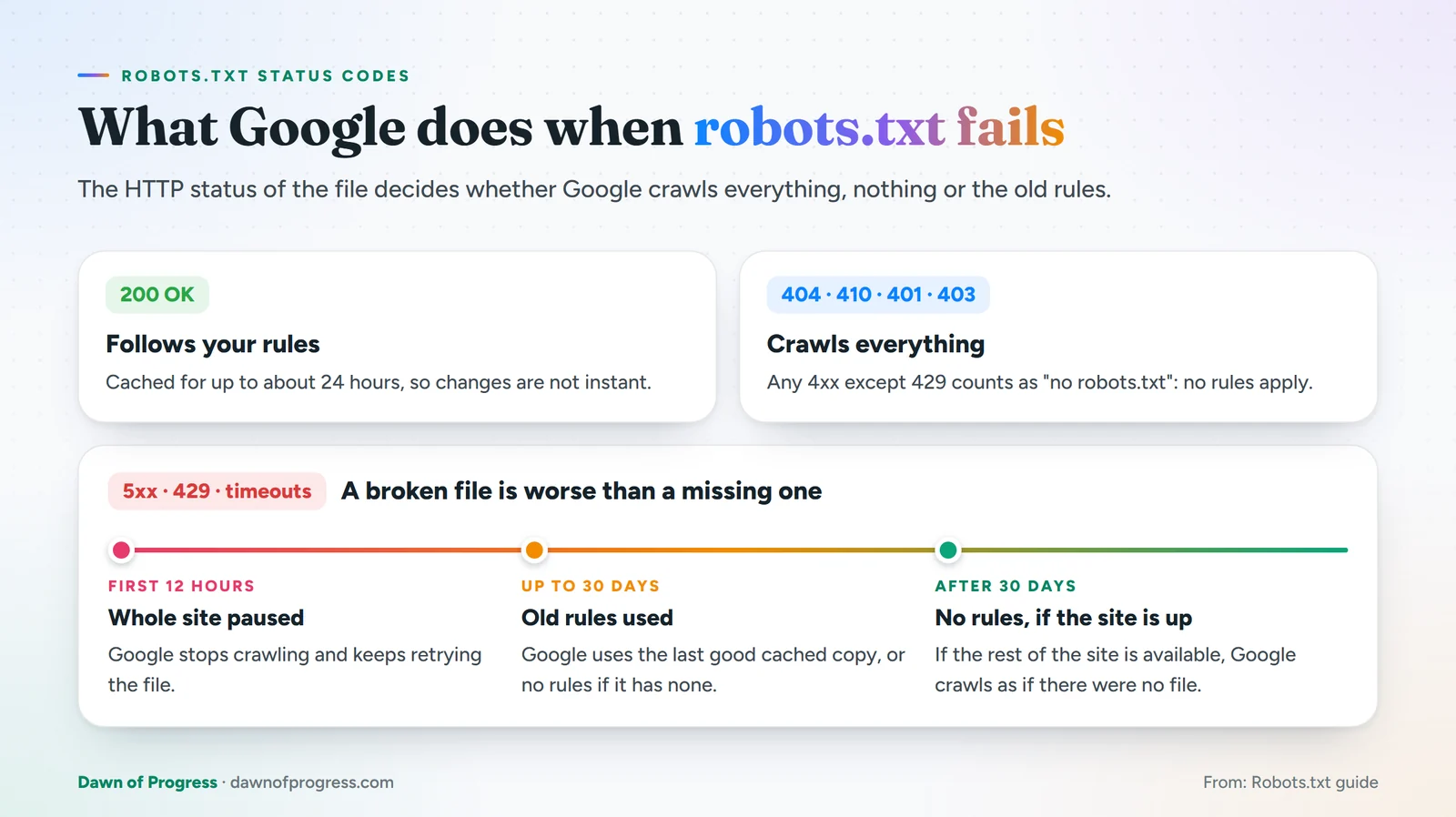
Google reacts very differently depending on the HTTP status code the file returns. Most guides skip this, but it matters during outages and migrations.
| robots.txt returns | What Google does |
|---|---|
| 200 OK | Follows the rules in the file |
| 3xx redirect | Follows up to five redirect hops, then treats it as a 404 |
| 404, 410 or other 4xx (except 429) | Assumes there are no rules and crawls everything |
| 429 or 5xx server error | Stops crawling the whole site for the first 12 hours while it retries |
| 5xx for longer | Uses the last good cached copy for up to 30 days; after that, if the site is otherwise up, it crawls as if there were no file |
| DNS errors, timeouts | Treated like a server error |
Two lessons. A robots.txt that returns 5xx errors can pause crawling of your whole site, so a broken file is worse than a missing one. And don’t return 401 or 403 to slow Google down; Google treats them like a 404 and crawls everything.
Google also caches the file, usually for up to 24 hours, so changes are not instant. The file size limit is 500 KiB; anything after that is ignored. If you’re near that, your rules are too complicated: group paths into folders instead of listing URLs one by one.
Robots.txt examples you can copy
Change www.example.com to your domain and test before you publish. Each example is a complete file unless noted.
Allow everything
The simplest valid file. Use it when you have nothing to block.
User-agent: *
Disallow:

Sitemap: https://www.example.com/sitemap.xml
Block the whole site
Every crawler is told to stay out. Right for a site under construction that is also password protected, never for a live site.
User-agent: *
Disallow: /
Block a folder, but allow one file inside it
User-agent: *
Disallow: /internal/
Allow: /internal/press-kit.pdf
Block URL parameters (robots.txt disallow with wildcards)
Use this when parameters create endless copies of the same page, such as sort orders or session IDs. Leave parameters that create genuinely different pages (like ?page=2 on a large archive) crawlable.
User-agent: *
# Block sort and session parameters wherever they appear
Disallow: /*?sort=
Disallow: /*&sort=
Disallow: /*?sessionid=
Disallow: /*&sessionid=
# Block internal search results
Disallow: /search/
To block every URL with a query string, use Disallow: /*?, but check first that no important page depends on one.
Block file types
User-agent: *
Disallow: /*.pdf$
Disallow: /*.xlsx$
Blocked PDFs can still be indexed by URL if they are linked. For a clean removal, serve them with an X-Robots-Tag: noindex header instead.
WordPress default robots.txt
WordPress creates a virtual robots.txt (there is no real file on the server) when none exists. Since WordPress 5.5 it looks like this, with the sitemap line pointing to the core sitemap:
User-agent: *
Disallow: /wp-admin/
Allow: /wp-admin/admin-ajax.php

Sitemap: https://www.example.com/wp-sitemap.xml
Recommended robots.txt for WordPress
For most WordPress sites, I keep the default and add only what earns its place: internal search URLs and the right sitemap. If you use Yoast SEO or Rank Math, the sitemap index lives at /sitemap_index.xml instead.
User-agent: *
Disallow: /wp-admin/
Allow: /wp-admin/admin-ajax.php
# Internal search results (thin, endless pages)
Disallow: /?s=
Disallow: /search/

Sitemap: https://www.example.com/sitemap_index.xml
What I leave out on purpose: /wp-includes/, /wp-content/, /wp-content/plugins/ and /wp-content/themes/. Those folders hold the CSS, JavaScript and images Google needs to render your pages. Old tutorials still recommend blocking them; don’t. To edit the file, Yoast SEO and Rank Math both include a robots.txt editor, or you can upload a real robots.txt file to the site root, which replaces the virtual one. More settings in my WordPress SEO guide.
Staging or development site
User-agent: *
Disallow: /
Use this as a second layer only. The real protection for a staging site is a password (HTTP authentication), because a blocked staging URL that gets linked can still show up in Google. In WordPress, ticking Settings > Reading > “Discourage search engines from indexing this site” adds a noindex tag (since WordPress 5.3 it no longer writes Disallow: /). Make “remove the staging robots.txt” a line on your launch checklist.
E-commerce store with filters
Filters (faceted navigation) can turn a few hundred products into thousands of URL combinations. Block the ones that never deserve to rank and keep category pages open.
User-agent: *
# Account, cart and checkout pages
Disallow: /cart/
Disallow: /checkout/
Disallow: /my-account/
# Filter and sort combinations
Disallow: /*?*color=
Disallow: /*?*size=
Disallow: /*?*price=
Disallow: /*?*sort=
# Add-to-cart and wishlist links
Disallow: /*add-to-cart=
Disallow: /*?*wishlist=

Sitemap: https://www.example.com/sitemap_index.xml
/*?*color= matches color= anywhere after the ?, so it catches both ?color=red and ?size=m&color=red. If a filter page deserves to rank (say “red running shoes” has real demand), give it a clean URL like /running-shoes/red/ and leave it crawlable.
How do you block AI crawlers with robots.txt?
Name each bot in its own group. The catch is that AI companies run several bots with different jobs, and blocking the wrong one can remove you from AI answers you want to appear in. This table reflects each company’s documentation in November 2026:
| User-agent | Company | What it does | What blocking it does |
|---|---|---|---|
| GPTBot | OpenAI | Collects content that may be used to train OpenAI’s models | Tells OpenAI not to use your content for training. No effect on ChatGPT search |
| OAI-SearchBot | OpenAI | Finds and indexes pages for ChatGPT search | Your pages won’t be shown in ChatGPT search answers (they may still appear as plain links) |
| ChatGPT-User | OpenAI | Visits a page when a user asks ChatGPT to | OpenAI says robots.txt rules may not apply, because a person started the request |
| Google-Extended | A robots.txt token, not a separate crawler: controls use of your content for Gemini model training and grounding in Gemini Apps and Vertex AI | No effect on Google Search, rankings, AI Overviews or AI Mode | |
| ClaudeBot | Anthropic | Collects content that may be used to train Claude | Excludes your future content from Anthropic’s training data |
| Claude-SearchBot | Anthropic | Indexes pages to improve Claude’s search results | Less visibility in Claude’s search answers |
| Claude-User | Anthropic | Fetches pages when a Claude user asks a question | Claude can’t read your page for that user |
| PerplexityBot | Perplexity | Indexes pages to surface and link them in Perplexity answers; Perplexity says it isn’t used to train AI models | Less visibility in Perplexity |
| Perplexity-User | Perplexity | Fetches a page a user asked about | Perplexity says it generally ignores robots.txt, since a person made the request |
| CCBot | Common Crawl | Builds a free, public web archive that many AI models have been trained on | Keeps your future pages out of Common Crawl’s archive |
Sources: OpenAI’s crawler documentation, Anthropic’s help centre, Google’s common crawlers list, and Perplexity’s and Common Crawl’s own crawler pages. OpenAI and Perplexity both say robots.txt changes can take about 24 hours to reach their systems.
Example: stay visible in AI search, opt out of training
This is the setup I’d suggest for most businesses that want to be found in ChatGPT, Claude and Perplexity but don’t want their writing used to train models:
# AI search crawlers: allowed
User-agent: OAI-SearchBot
User-agent: Claude-SearchBot
User-agent: PerplexityBot
Allow: /

# AI training crawlers: blocked
User-agent: GPTBot
User-agent: ClaudeBot
User-agent: Google-Extended
User-agent: CCBot
Disallow: /

# Everyone else
User-agent: *
Disallow: /wp-admin/
Allow: /wp-admin/admin-ajax.php

Sitemap: https://www.example.com/sitemap_index.xml
Remember the group rule: because these bots now have their own groups, they ignore the * group. If you want them to skip /wp-admin/ too, repeat that rule in their groups.
Example: block all known AI bots
User-agent: GPTBot
User-agent: OAI-SearchBot
User-agent: ClaudeBot
User-agent: Claude-SearchBot
User-agent: PerplexityBot
User-agent: Google-Extended
User-agent: CCBot
Disallow: /
Think twice before using this one. You will drop out of ChatGPT search and Perplexity citations, which are a growing source of visits for many sites. My LLM SEO guide and SEO vs GEO explain what that visibility is worth.
Three warnings about AI crawlers
- Google’s AI Overviews and AI Mode use normal Googlebot crawling. Google-Extended doesn’t control them. The only way to keep content out of them is snippet controls such as
nosnippet, which also affect your normal results. - robots.txt only works on bots that obey it. For bots that ignore it, you need firewall or CDN rules.
- Your host or CDN may already be blocking AI bots. Some CDNs offer a “block AI bots” setting that overrides your robots.txt. Check it, so your file and your CDN say the same thing.
Google has also said it plans to support a newer AI training preference signal (the IETF’s AI preferences work) through a dedicated robots.txt token in early 2027. I’ll update this guide when that ships.
How do you create or edit a robots.txt file?
- Open your current file at
https://yourdomain.com/robots.txtand save a copy as a backup. - Write the new rules in a plain text editor (not a word processor) and save the file as
robots.txtin UTF-8. - Check every rule against a few real URLs you want blocked and a few you want crawled (see the testing section below).
- Upload it to the site root with your host’s file manager, FTP or your CMS. In WordPress, use your SEO plugin’s editor. Shopify, Wix and Squarespace generate the file for you and offer limited editing; Shopify lets you edit it through a
robots.txt.liquidtheme template. - Confirm it’s live by opening the URL in a private browser window. It should return the new text with a 200 status.
- Ask Google to refresh it if the change is urgent (next section). Otherwise Google picks it up within about a day.
How do you test robots.txt?
Google retired its old robots.txt Tester in late 2023. In 2026 you test with these:
The robots.txt report in Search Console
In Google Search Console, go to Settings, then open the robots.txt report. It lists the robots.txt files Google found for the top 20 hosts on your property, when each was last crawled, the fetch status, and any rules it couldn’t parse. After an urgent fix, use the three-dot menu next to a file and choose Request a recrawl. The report is available for domain-level properties.
URL Inspection
Paste any URL into the inspection bar at the top of Search Console. In the page indexing details, the Crawl allowed? line says “Yes” or “No: blocked by robots.txt”. Use it to check your most important pages after every change.
The Page indexing report
Two statuses in Indexing > Pages point straight at robots.txt:
- Blocked by robots.txt: not crawled because of a rule. Fine for carts and filters; a problem if it lists real pages.
- Indexed, though blocked by robots.txt: indexed without content. Decide whether the page should rank (unblock it) or not (unblock it and add
noindex).
Outside Search Console
SEO crawlers such as Screaming Frog can test a custom robots.txt against your real URLs before you publish it, and Bing Webmaster Tools has its own tester. I list free options in my free SEO tools guide.
What are the most common robots.txt mistakes?
In my client work since 2014, most robots.txt problems I’ve found came from one of these:
Disallow: /left over from staging. A redesign goes live with the staging file still in place, and traffic falls within days. Check the file within an hour of every launch.- Blocking CSS, JavaScript or images. Rules like
Disallow: /wp-includes/orDisallow: /*.js$stop Google rendering your pages the way visitors see them, which can hurt how it understands layout, content and mobile-friendliness. - Using robots.txt to hide private pages. The file is public and lists exactly where the private pages are. Use a password.
- Blocking a page and adding noindex. Google never sees the
noindex, so the URL can stay indexed. Picknoindexand keep crawling open. - Using robots.txt to remove pages that are already indexed. Blocking freezes them in place. Unblock, add
noindexor return a 404 or 410, and wait. - Forgetting that a named group replaces the
*group. Add aGooglebotgroup with one rule and Googlebot stops following all your general rules. - Relying on
crawl-delayfor Google. Google ignores it. If Googlebot is overloading a server, fix the server or temporarily return 503 for the busiest pages. - A robots.txt that returns 5xx errors. Google pauses crawling of the whole site. Check the robots.txt report for fetch errors after host changes.
- Blocking parameter URLs that carry canonical or redirect signals. If Google can’t crawl a URL, it can’t see the canonical tag or redirect on it. Block only parameter combinations that are pure waste.
One habit prevents most of these: before you publish, read every rule aloud and name one real URL it blocks and one it doesn’t.
Frequently asked questions
Does every website need a robots.txt file?
No, but it’s good practice. Without one, crawlers assume they can crawl everything, which is fine for most small sites. A short file that allows everything and lists your sitemap costs nothing and avoids 404 errors in your logs.
Does robots.txt affect rankings?
Not directly. It decides what Google can crawl. Blocking the wrong pages or resources can hurt rankings badly; blocking low-value URLs on a large site can help Google spend its crawl time on pages that matter.
What is the difference between robots.txt and a robots meta tag?
robots.txt controls whether a crawler may request a URL. A robots meta tag (<meta name="robots" content="noindex">) sits on a page and controls whether that page may be indexed or shown with a snippet. Google must crawl a page to read its meta tag.
Should I block AI crawlers?
Only if you’ve decided you don’t want your content used for AI training, and then block the training bots (GPTBot, ClaudeBot, Google-Extended, CCBot) rather than the search bots. Blocking OAI-SearchBot, Claude-SearchBot or PerplexityBot removes you from those AI search results.
How long does Google take to see robots.txt changes?
Google usually caches the file for up to 24 hours. Request a recrawl in Search Console’s robots.txt report to speed it up after an urgent fix.
Can I have more than one robots.txt file?
One per host. Each subdomain (blog.example.com, shop.example.com) needs its own file at its own root. Files in subfolders are ignored.
Does Bing follow the same rules?
Mostly. The official standard (RFC 9309) uses the same longest-match rule as Google, and Bing also ignores the * group when a Bingbot group exists. The main difference: Bing supports crawl-delay (a value from 1 to 30 seconds), and Bing Webmaster Tools also has a crawl control setting.


