
Last updated: November 2026. Written by Syed Usman Riaz.
Technical SEO is the work that lets search engines crawl, render, index and serve your pages without problems. Do it in priority order: first make sure Google can reach your pages (robots.txt, XML sitemap, internal links), then make sure the right pages get indexed (noindex, canonical tags, redirects, status codes), and only then polish speed, structured data and the rest. Core Web Vitals targets are LCP of 2.5 seconds or less, INP of 200 ms or less and CLS of 0.1 or less. Most small sites can run the whole check with free tools in an afternoon.
Below are 25 checks in order of impact, each with a free way to check it. Short on time? Use the 30-minute quick audit near the end.
Key takeaways
- Order matters. A fast page that Google can’t crawl or index earns nothing. Fix crawling and indexing before speed or schema.
- robots.txt controls crawling, not indexing. To keep a page out of Google, use
noindex, and don’t also block it in robots.txt. - Your XML sitemap should list only canonical, indexable URLs that return a 200 status. Google ignores
priorityandchangefreq. - Crawl budget is not a small-site problem. Google’s guide is written for sites with roughly 10,000+ fast-changing pages or 1 million+ pages.
- Blocking Google-Extended does not remove you from Google Search. Training bots and search bots are separate decisions.
What is technical SEO?
Technical SEO is the part of SEO that deals with your website’s infrastructure rather than its words or its links. It makes sure search engines can find, read and store your pages, and that visitors get a fast, secure page when they click. It sits next to on-page and off-page work, the other two main parts explained in what is SEO.
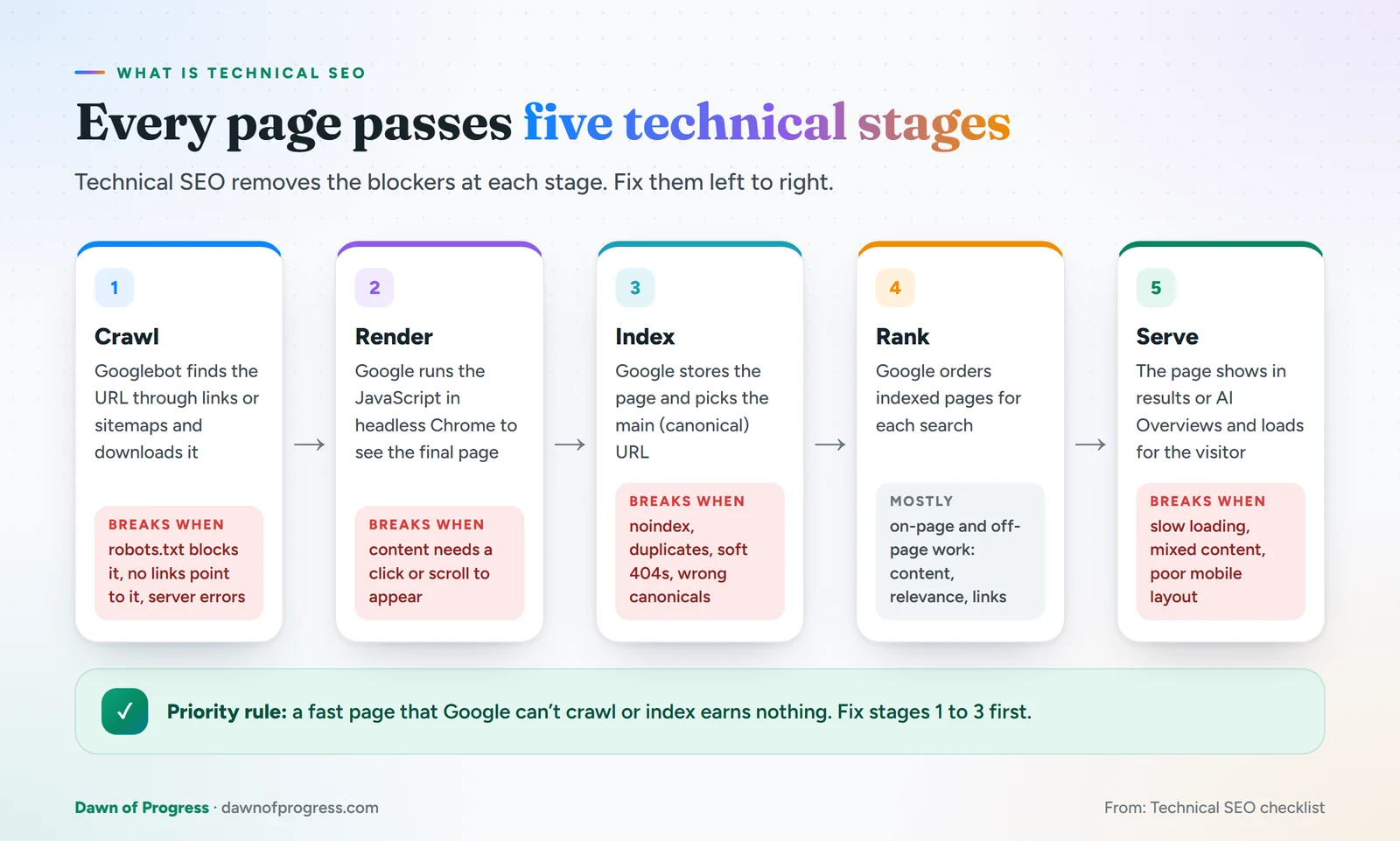
Every page passes through five stages before it brings you a visitor:
- Crawl: Googlebot (Google’s crawler) finds and downloads the URL. Blocked by robots.txt rules, orphan pages, server errors.
- Render: Google runs the page’s JavaScript in headless Chrome. Blocked by content that needs a click to appear.
- Index: Google stores the page and picks the main (canonical) URL. Blocked by
noindex, duplicates, soft 404s. - Rank: Google orders indexed pages for each search. Mostly on-page and off-page work.
- Serve: The page shows in results, AI Overviews or rich results and loads. Hurt by slow loading, mixed content, poor mobile layout.
Technical problems are often site-wide. In my client work since 2014, the most common “why aren’t we ranking?” causes I’ve found were rarely clever: a staging setting left on after launch, a sitemap nobody submitted, or redirects pointing in circles.
What are the 25 technical SEO checks, in priority order?
Work top to bottom and skip checks that don’t apply (hreflang on a one-language site, for example).
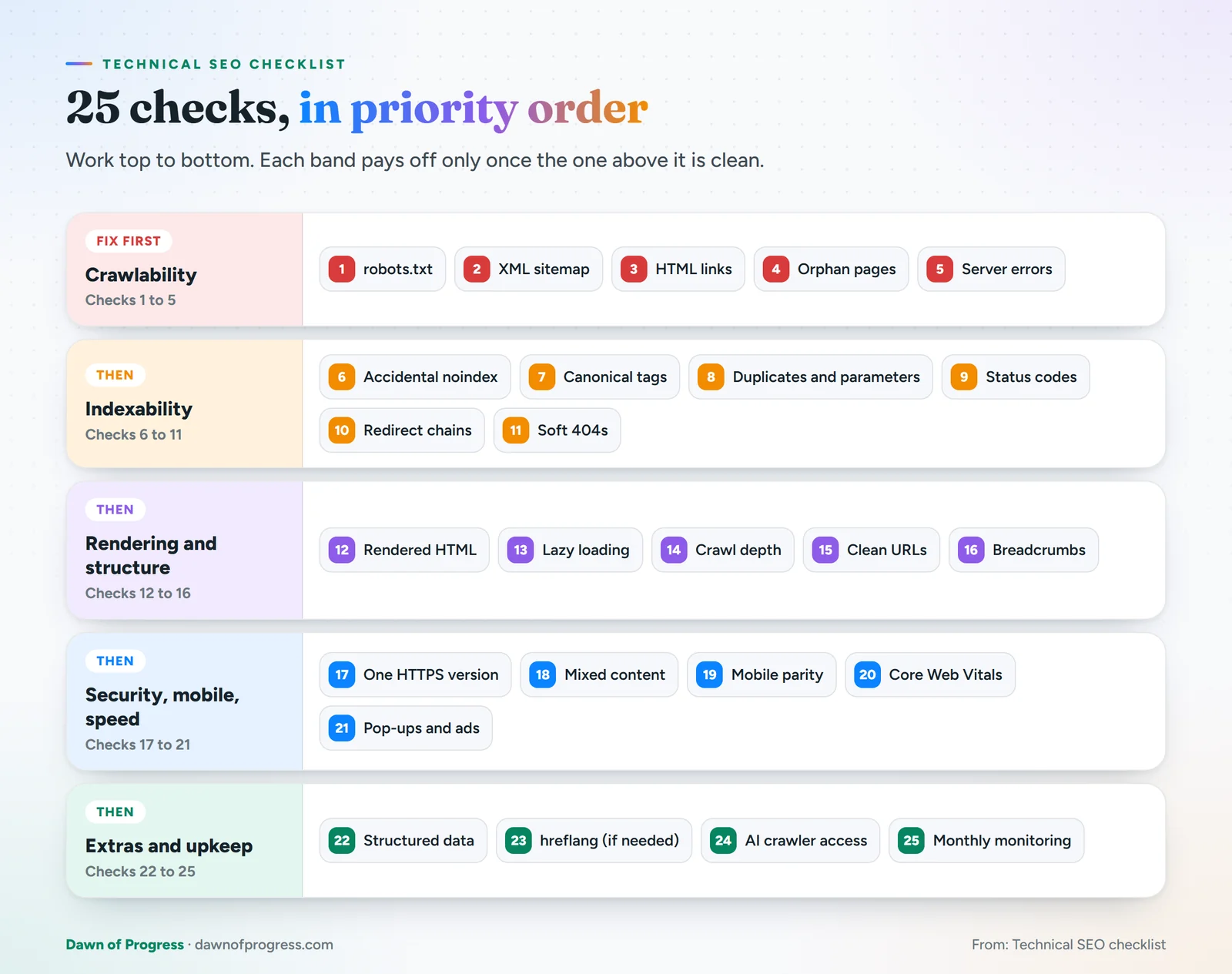
| # | Check | Free tool to check it |
|---|---|---|
| 1 | robots.txt doesn’t block important pages or files | Search Console robots.txt report |
| 2 | Clean XML sitemap submitted | Search Console Sitemaps report |
| 3 | Important pages linked with normal HTML links | Screaming Frog |
| 4 | No orphan pages | Screaming Frog + sitemap |
| 5 | No server errors (5xx) | Search Console Crawl stats |
| 6 | No accidental noindex | Page indexing report |
| 7 | Correct canonical tags | URL Inspection |
| 8 | Duplicate and parameter URLs under control | Page indexing report |
| 9 | Right status codes (200, 301, 404/410) | Screaming Frog |
| 10 | No redirect chains or loops | Screaming Frog |
| 11 | No soft 404s | Page indexing report |
| 12 | Main content and links visible after rendering | URL Inspection live test |
| 13 | Lazy-loaded content loads without clicks | URL Inspection screenshot |
| 14 | Key pages within about 3 clicks of the homepage | Screaming Frog crawl depth |
| 15 | Short, readable, lowercase URLs | Screaming Frog |
| 16 | Breadcrumbs and clear navigation | Manual check |
| 17 | One HTTPS version of the site | Browser + Screaming Frog |
| 18 | No mixed content | Browser console |
| 19 | Same content on mobile and desktop | URL Inspection |
| 20 | Core Web Vitals pass | PageSpeed Insights |
| 21 | No intrusive pop-ups or heavy ads | Manual check on a phone |
| 22 | Valid structured data that matches the page | Rich Results Test |
| 23 | Correct hreflang (multi-language sites only) | Screaming Frog |
| 24 | AI crawler access decided on purpose | robots.txt + CDN settings |
| 25 | Monthly monitoring | Search Console |
How do you check crawlability?
Crawlability means search engine bots can reach your pages. If Googlebot can’t fetch a URL, nothing else here matters for it.
1. Check robots.txt
robots.txt is a plain text file at the root of your domain (https://www.example.com/robots.txt) that tells crawlers which URLs they may request. Google only reads it from the top-level directory, applies it only to that exact host and protocol, and ignores anything past the first 500 KiB (Google’s robots.txt specification). A typical WordPress file:
User-agent: *
Disallow: /wp-admin/
Allow: /wp-admin/admin-ajax.php

Sitemap: https://www.example.com/sitemap_index.xml
How the syntax works:
User-agentnames the crawler a group of rules applies to;*means every crawler without its own group.Disallowblocks a path;Allowmakes an exception inside it. Paths are case-sensitive.*matches any characters and$marks the end of a URL, soDisallow: /*.pdf$blocks URLs ending in .pdf.- When rules conflict, Google follows the longest matching rule, and the least restrictive one if they tie. Google ignores
crawl-delay.
The two lines that can wipe a site from search:
User-agent: *
Disallow: /
Fine on staging, a disaster on a live site. Remember that robots.txt controls crawling, not indexing: Google can still index a blocked URL without its content if other pages link to it. Don’t block the CSS and JavaScript files your pages need to display, either. Check for errors in Search Console under Settings > robots.txt.
2. Check your XML sitemap
An XML sitemap is a file listing the URLs you want search engines to find, optionally with the date each last changed. Most CMSs and SEO plugins create one automatically:
<?xml version="1.0" encoding="UTF-8"?>
<urlset xmlns="http://www.sitemaps.org/schemas/sitemap/0.9">
  <url>
    <loc>https://www.example.com/technical-seo-checklist/</loc>
    <lastmod>2026-11-28</lastmod>
  </url>
</urlset>
Google’s sitemap rules: up to 50,000 URLs or 50 MB uncompressed per file (split larger sites with a sitemap index), absolute URLs only, and <priority> and <changefreq> are ignored. <lastmod> is used only if it is consistently accurate. A sitemap is a hint that helps discovery, not a guarantee of indexing.
The check: list only URLs that return 200, are canonical and are meant to be indexed. No redirects, no 404s, no noindex pages. Submit it in Search Console’s Sitemaps report and add a Sitemap: line to robots.txt. My Google Search Console guide shows the steps.
3. Link important pages with normal HTML links
Google discovers most pages by following links, and it can only reliably follow <a> elements with an href attribute:
<!-- Google can follow this -->
<a href="/services/web-design/">Web design services</a>

<!-- Google may not follow these -->
<span onclick="goTo('/services/web-design/')">Web design</span>
<a href="#/services/web-design">Web design</a>
Use descriptive anchor text, not “click here”. More in my on-page SEO guide.
4. Find and fix orphan pages
An orphan page has no internal links pointing to it, so it gets little attention. Crawl the site with Screaming Frog and compare with your sitemap: URLs in the sitemap but missing from the crawl are orphans. Link to them from relevant pages, or remove them.
5. Fix server errors (and stop worrying about crawl budget)
Crawl budget is how many URLs Google can and wants to crawl on your site. Google’s crawl budget guide says it’s meant for sites with roughly 1 million+ pages changing weekly or 10,000+ pages changing daily; for smaller sites, a current sitemap and regular checks of the Page indexing report are enough.
What does hurt small sites is server errors. When a site returns 5xx or 429 errors, Google slows its crawling. Open Settings > Crawl stats in Search Console and check host status and server errors. If you see regular 5xx errors, talk to your host, and check that your firewall, security plugin or CDN isn’t blocking Googlebot.
How do you make sure the right pages get indexed?
Indexability means a crawled page is allowed, and worth, storing in Google’s index. This group decides which of your URLs show up in search.
6. Remove accidental noindex tags
A noindex rule tells search engines not to index a page. It can sit in the HTML or in an HTTP header:
<meta name="robots" content="noindex">X-Robots-Tag: noindexUse it on purpose for thank-you pages and internal search results. In Search Console’s Page indexing report, open “Excluded by ‘noindex’ tag” and confirm every URL there is meant to be there. Never block a noindex page in robots.txt (Google can’t see the tag on a page it can’t crawl), and don’t add noindex with JavaScript on pages you want indexed.
7. Set correct canonical tags
A canonical tag tells Google which URL is the main version when several URLs show the same or similar content:
<link rel="canonical" href="https://www.example.com/technical-seo-checklist/">Google calls rel="canonical" a strong signal, not a command, so it can pick a different URL if your other signals disagree (Google: consolidate duplicate URLs). The rules:
- Give every indexable page a self-referencing canonical (pointing to itself).
- Use absolute URLs with the protocol and www version you actually use.
- Point canonicals at pages that return 200, never at redirects or 404s.
- Don’t use
noindexor robots.txt to choose a canonical; Google advises against both. - Make internal links, sitemap and canonical all name the same URL.
URL Inspection shows the “User-declared canonical” and the “Google-selected canonical”. If they differ, find out why.
8. Control duplicate and parameter URLs
Duplicates come from URL parameters (?sort=price, ?utm_source=newsletter), http and https, www and non-www, and trailing slash variants. Fix them in order: 301-redirect true duplicates, canonicalize parameter versions, stop linking to parameter URLs internally, and keep them out of the sitemap. Large stores can also block crawl-wasting filter parameters in robots.txt, for URLs that never need indexing.
9. Return the right status codes
Every URL answers with an HTTP status code. The ones that matter:
| Code | Meaning | Use it when |
|---|---|---|
| 200 | OK | Every page you want indexed |
| 301 / 308 | Moved permanently | A page moved for good; a strong canonical signal |
| 302 / 307 | Moved temporarily | Short-term moves only; a weak signal |
| 404 / 410 | Not found / gone | A page is gone with no replacement |
| 5xx | Server error | Never on purpose; Google slows crawling |
404s on deleted pages are normal; the problem is internal links or sitemap entries pointing to them. In Screaming Frog, filter by “Client Error (4xx)” and fix the links.
10. Fix redirect chains and loops
A redirect chain is A to B to C. Google follows up to 10 hops, but each hop slows visitors. A redirect loop (A to B to A) never loads. Screaming Frog lists both. Point the first URL straight at the final one and update internal links.
11. Fix soft 404s
A soft 404 returns a 200 “OK” code but looks empty or like an error page to Google, such as an empty category or a “not found” message without a real 404. Search Console lists them in Page indexing. If the page is gone, return a real 404 or 410, or 301 it to a close replacement. If it’s a real page, give it real content.
Can Google render your JavaScript and lazy-loaded content?
Usually yes. Google renders pages with a current version of Chrome, so JavaScript content is generally indexable. Trouble starts when content needs a click, scroll or login to appear, because Googlebot doesn’t interact with pages.
12. Check the rendered HTML
In Search Console, run URL Inspection > Test live URL > View tested page. Confirm the rendered HTML and screenshot contain your main text, headings, internal links, canonical tag and structured data. For JavaScript-heavy sites, Google still recommends server-side rendering or pre-rendering, which also speeds pages up for visitors.
13. Make lazy-loaded content load without interaction
Lazy loading delays images or sections until the visitor scrolls near them. Use the browser’s built-in lazy loading or the IntersectionObserver API, never make content depend on a click, and never lazy-load what the visitor sees first:
<!-- First screen: load normally -->
<img src="/hero.webp" width="1200" height="630" alt="Technical SEO checklist cover">

<!-- Further down: lazy-load -->
<img src="/diagram.webp" width="800" height="500" loading="lazy" alt="Crawl, render, index diagram">
For infinite scroll, give each chunk its own URL (such as ?page=2) and link to them. More in my image optimization guide.
What site architecture and URL structure works best?
A flat, logical structure where important pages are a few clicks from the homepage, with URLs a person can read.
14. Keep key pages close to the homepage
Crawl depth is the number of clicks from the homepage to a page. A common guideline (not a Google rule) is to keep important pages within about 3 clicks; deeply buried pages tend to be crawled less. Screaming Frog shows a “Crawl Depth” column. Fix deep pages with links from category pages, hubs or related posts.
15. Use clean URLs
Good: /technical-seo-checklist/. Poor: /index.php?p=8821&cat=4. Keep URLs short, lowercase and hyphenated. Don’t change ranking URLs just to tidy them; if you must, 301-redirect.
16. Add breadcrumbs and clear navigation
Breadcrumbs (“Home > Blog > Technical SEO”) show where a page sits and add internal links up the structure. Most SEO plugins output them with BreadcrumbList structured data.
Is your site secure on HTTPS without mixed content?
It should be. HTTPS encrypts the connection, and browsers label plain http pages “Not secure”.
17. Serve one HTTPS version
Test all four versions: http://example.com, http://www.example.com, https://example.com and https://www.example.com. Three should 301-redirect in one hop to the fourth. Search Console’s HTTPS report flags URLs Google could only reach over http.
18. Remove mixed content
Mixed content is an https page loading images, scripts or styles over http. Open the page in Chrome, press F12 and check the Console for “Mixed Content” warnings. On WordPress, the cause is usually old image URLs in posts; a database search-and-replace from http://yourdomain to https://yourdomain (after a backup) usually fixes it.
Is your site ready for mobile-first indexing?
Google indexes and ranks the mobile version of your pages, crawled with its smartphone crawler. If something is missing on mobile, for Google it’s missing.
19. Check mobile and desktop parity
Google asks for the same main content, headings, structured data and robots meta tags on mobile and desktop. Responsive design gives you most of this. Watch for themes that hide sections or reviews on phones, and mobile menus that drop key links. URL Inspection crawls as a smartphone.
What Core Web Vitals scores do you need?
Core Web Vitals are Google’s three user-experience metrics. A page passes when at least 75% of real visits meet all three “good” thresholds (web.dev: Web Vitals):
| Metric | Measures | Good | Poor |
|---|---|---|---|
| LCP (Largest Contentful Paint) | How fast the main content appears | 2.5 s or less | Over 4 s |
| INP (Interaction to Next Paint) | How fast the page responds to taps and clicks | 200 ms or less | Over 500 ms |
| CLS (Cumulative Layout Shift) | How much the layout jumps while loading | 0.1 or less | Over 0.25 |
INP replaced FID (First Input Delay) in March 2024, so ignore guides that still mention FID.
20. Pass Core Web Vitals on key templates
Use Search Console’s Core Web Vitals report for URL groups and PageSpeed Insights for single pages, which shows field data (real Chrome users over 28 days, what counts) and lab data (a simulated test for debugging). Fixes that help most: compressed images, fewer scripts, caching, a CDN, and width and height on images. Details in my website speed guide.
21. Check the rest of page experience
Google says there is no single page experience signal. Core Web Vitals are used by its ranking systems; HTTPS, avoiding intrusive interstitials (pop-ups that cover the content) and sensible ad levels mainly help visitors rather than rankings directly, and good scores don’t guarantee top positions. A pop-up covering the page on a phone still loses visitors.
Do you need structured data?
Not to be indexed, but it helps Google understand a page and can make it eligible for rich results such as stars, prices and breadcrumbs. Structured data is code, usually JSON-LD, that describes the page using the schema.org vocabulary:
<script type="application/ld+json">
{
  "@context": "https://schema.org",
  "@type": "Article",
  "headline": "Technical SEO Checklist for 2026: 25 Checks in Priority Order",
  "author": { "@type": "Person", "name": "Syed Usman Riaz" },
  "datePublished": "2026-11-28",
  "dateModified": "2026-11-28"
}
</script>
22. Validate it and keep it honest
Test pages in Google’s Rich Results Test and fix errors. The markup must match what’s visible on the page. Google has also retired several rich result types since 2025, and FAQ rich results no longer show in Google Search as of 2026, so don’t add markup expecting a visual result. For most small sites, Organization, Article, Product, LocalBusiness and BreadcrumbList cover what matters.
How do you set up hreflang for multi-language sites?
hreflang tells Google which language or regional version of a page to show to which users. Skip this if your site has one language.
23. Check hreflang annotations
Each version must list itself and every other version, and those pages must link back; one-way tags may be ignored.
<link rel="alternate" hreflang="en" href="https://www.example.com/en/pricing/">
<link rel="alternate" hreflang="ur-PK" href="https://www.example.com/ur/pricing/">
<link rel="alternate" hreflang="x-default" href="https://www.example.com/pricing/">
Use an ISO 639-1 language code (en, ur), optionally followed by a region (en-GB); a region alone is invalid. x-default is the fallback for everyone else. Use full https URLs, and pick one method (HTML head, HTTP headers or sitemap), since Google treats them the same.
Should you block AI crawlers?
Decide on purpose, and know which bot does what. Blocking the wrong one can remove you from AI answers, or from Google entirely.
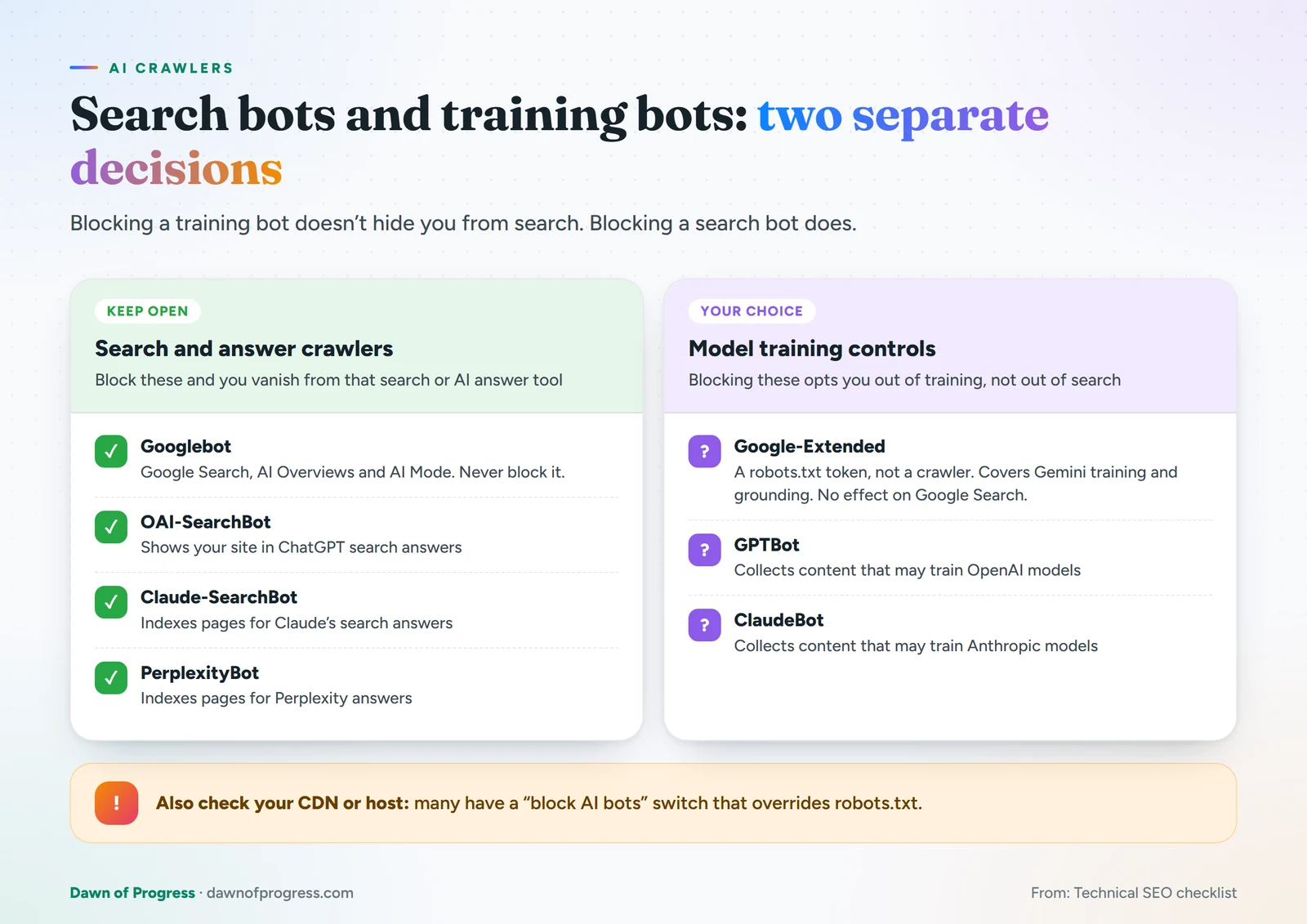
24. Set AI crawler access deliberately
| Bot or token | Company | What it does | If you block it |
|---|---|---|---|
| Googlebot | Crawls for Google Search, including AI Overviews and AI Mode | You disappear from Google Search. Never block it. | |
| Google-Extended | A robots.txt token, not a separate crawler: controls Gemini model training and grounding in Gemini Apps and Vertex AI | No effect on Google Search inclusion or ranking | |
| GPTBot | OpenAI | Collects content that may train OpenAI models | Your content shouldn’t be used for training |
| OAI-SearchBot | OpenAI | Surfaces sites in ChatGPT search | You won’t appear in ChatGPT search answers |
| ChatGPT-User | OpenAI | Fetches a page when a user asks ChatGPT to | robots.txt may not apply to user-started requests |
| ClaudeBot / Claude-SearchBot / Claude-User | Anthropic | Training / search indexing / user-requested fetches | Each one is blocked separately |
| PerplexityBot | Perplexity | Indexes pages for Perplexity answers | Less visibility in Perplexity |
Sources: Google’s common crawlers list, OpenAI’s crawler documentation and Anthropic’s help centre.
A common setup for a business that wants AI search visibility but no model training:
# Allow AI search crawlers
User-agent: OAI-SearchBot
Allow: /

User-agent: Claude-SearchBot
Allow: /

User-agent: PerplexityBot
Allow: /

# Opt out of model training (optional)
User-agent: GPTBot
Disallow: /

User-agent: ClaudeBot
Disallow: /

User-agent: Google-Extended
Disallow: /
Two warnings. Google’s AI Overviews and AI Mode come from normal Googlebot crawling, so Google-Extended doesn’t control them; snippet controls such as nosnippet do. And many CDNs and hosts have a “block AI bots” switch that overrides robots.txt, so check it too. The visibility side is covered in SEO vs GEO.
25. Monitor every month
Once a month, check Search Console’s Page indexing report for new reasons, Crawl stats for server errors, Core Web Vitals and HTTPS. Run a fresh crawl after any redesign, migration or plugin change.
How do you run a technical SEO audit with free tools?
You don’t need a paid suite for a small or medium site:
| Tool | Use it for | Limit |
|---|---|---|
| Google Search Console | Indexing, crawl stats, sitemaps, Core Web Vitals, HTTPS, robots.txt | Verified sites only |
| URL Inspection | One URL: indexed or not, canonical, rendered HTML | One URL at a time, daily quota |
| PageSpeed Insights | Core Web Vitals field data plus a lab test | One URL at a time |
| Rich Results Test | Structured data errors and eligibility | One URL or snippet at a time |
| Screaming Frog SEO Spider | Status codes, redirects, canonicals, depth, titles | 500 URLs per crawl in the free version |
Start with Search Console (what Google did), then crawl (what your site serves), then test top templates. More on my tools page.
What should WordPress sites check?
- Settings > Reading: “Discourage search engines from indexing this site” must be unticked on a live site. It’s one of the most common reasons a WordPress site vanishes from Google.
- Settings > Permalinks: use “Post name”. Don’t change it on an established site without redirects.
- One SEO plugin only (Yoast, Rank Math, All in One SEO or similar). Two create duplicate tags and conflicting canonicals.
- Sitemap: WordPress has its own at
/wp-sitemap.xml, but SEO plugins usually replace it. Submit the active one and exclude thin tag, author and attachment archives. - Caching and image plugins fix most Core Web Vitals problems. Test afterwards, because aggressive script delaying can break menus.
How do you do a 30-minute technical SEO quick audit?
Use this to find out fast whether anything is badly wrong:
- 0 to 3 min: Search
site:yourdomain.com. Is the homepage there, and roughly the right number of pages? - 3 to 6 min: Open
/robots.txt. Look forDisallow: /or blocked folders that hold real content. - 6 to 12 min: In Search Console’s Page indexing report, note the top “Why pages aren’t indexed” reasons and spot-check 3 URLs each.
- 12 to 15 min: In Sitemaps, confirm a sitemap is submitted, read successfully and recent.
- 15 to 18 min: Run URL Inspection on the homepage and your best money page. Indexed? Right canonical? Full rendered page?
- 18 to 21 min: Type all four http/https and www/non-www versions. Do they land on one URL in one hop?
- 21 to 26 min: Crawl with Screaming Frog. Check 4xx, 5xx, redirect chains and non-indexable pages.
- 26 to 30 min: Run two key pages through PageSpeed Insights on mobile and note LCP, INP and CLS.
Problems in steps 1 to 6 are urgent; steps 7 and 8 make this week’s to-do list.
What are the most common technical SEO mistakes?
- Blocking a page in robots.txt and adding noindex. Google can’t see the tag. Use
noindexand leave crawling open. - Leaving staging settings on after launch, such as
Disallow: /or WordPress’s “discourage search engines” box. - Canonicals pointing to redirected or 404 URLs. Always point to the final 200 URL.
- Chasing a 100 PageSpeed score. Passing Core Web Vitals in field data is the goal.
- Blocking Googlebot to stop “AI”. It removes you from Google Search.
Frequently asked questions
What is a technical SEO checklist?
A list of checks that make sure search engines can crawl, render and index your site, and that pages load fast and securely. A good one is ordered by impact, so crawling and indexing come before speed and structured data.
Does robots.txt stop a page from being indexed?
No. It only stops crawling. A blocked URL can still appear in results, usually without a description, if other pages link to it. Use noindex on a crawlable page instead.
What is a canonical tag in SEO?
A <link rel="canonical"> tag that tells search engines which URL is the main version when duplicates exist. Google treats it as a strong signal but can choose another URL if other signals disagree.
How often should I do a technical SEO audit?
A light Search Console check every month, and a full crawl every 3 to 6 months or after any redesign, migration or major plugin change.
Is technical SEO hard to learn?
The basics here aren’t; most small-site fixes are settings, not code. JavaScript rendering, large-site crawling and migrations take more experience. See my advanced SEO strategies, or work with me if you’d rather have it done for you.


